
Start here
Getting started
Menu: the sign-in page, then whichever screen your role opens on · Who: everybody
Signing in
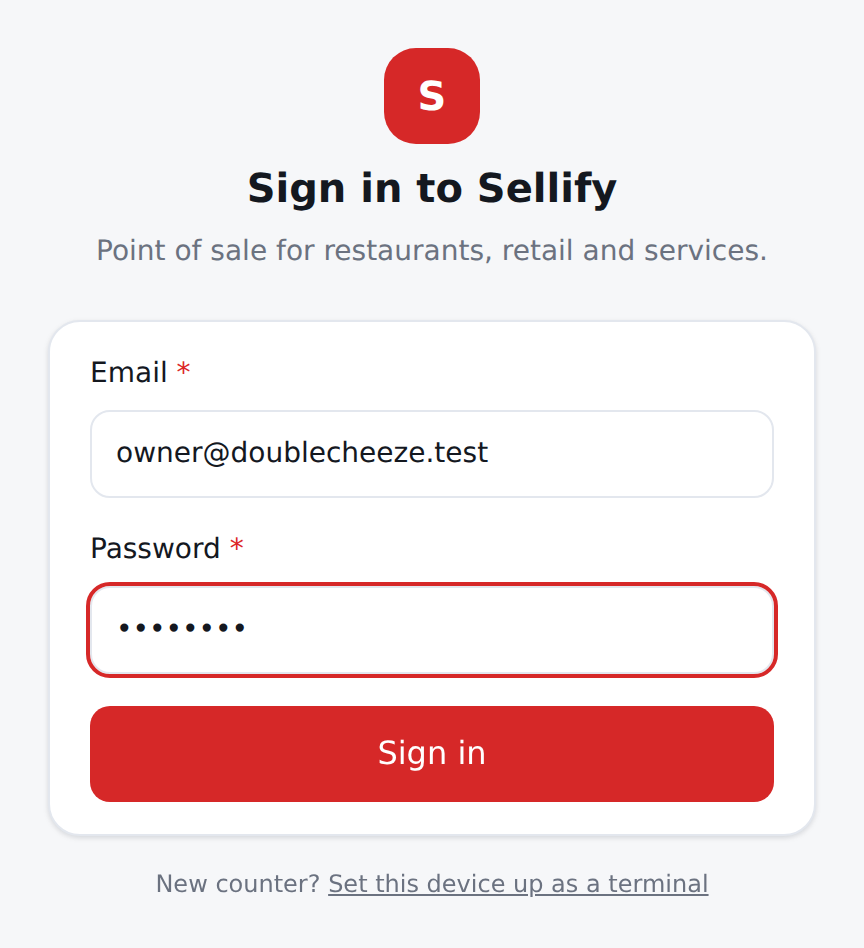
Go to your Sellify address (for example app.sellifypos.com) and enter the email and password
you were given. Nothing else is needed — there is no company code to remember, because
your email belongs to exactly one company.
If you see "This company is suspended", the account is unpaid or has been stopped; see Billing.
Who can do what
| Role | Can do |
|---|---|
| Company owner | Everything in your company: all branches, all settings, reports, billing |
| Branch manager | The branch (or branches) they run: sell, stock, reports, day close, approve discounts |
| Cashier | The till. No reports, no settings, no stock |
| Kitchen | The kitchen screen (a later phase) |
| Platform admin | Sellify's own staff. No till, no catalog, no reports of yours |
A cashier who signs in lands straight on the POS; there is nothing else for them to see.
The dashboard
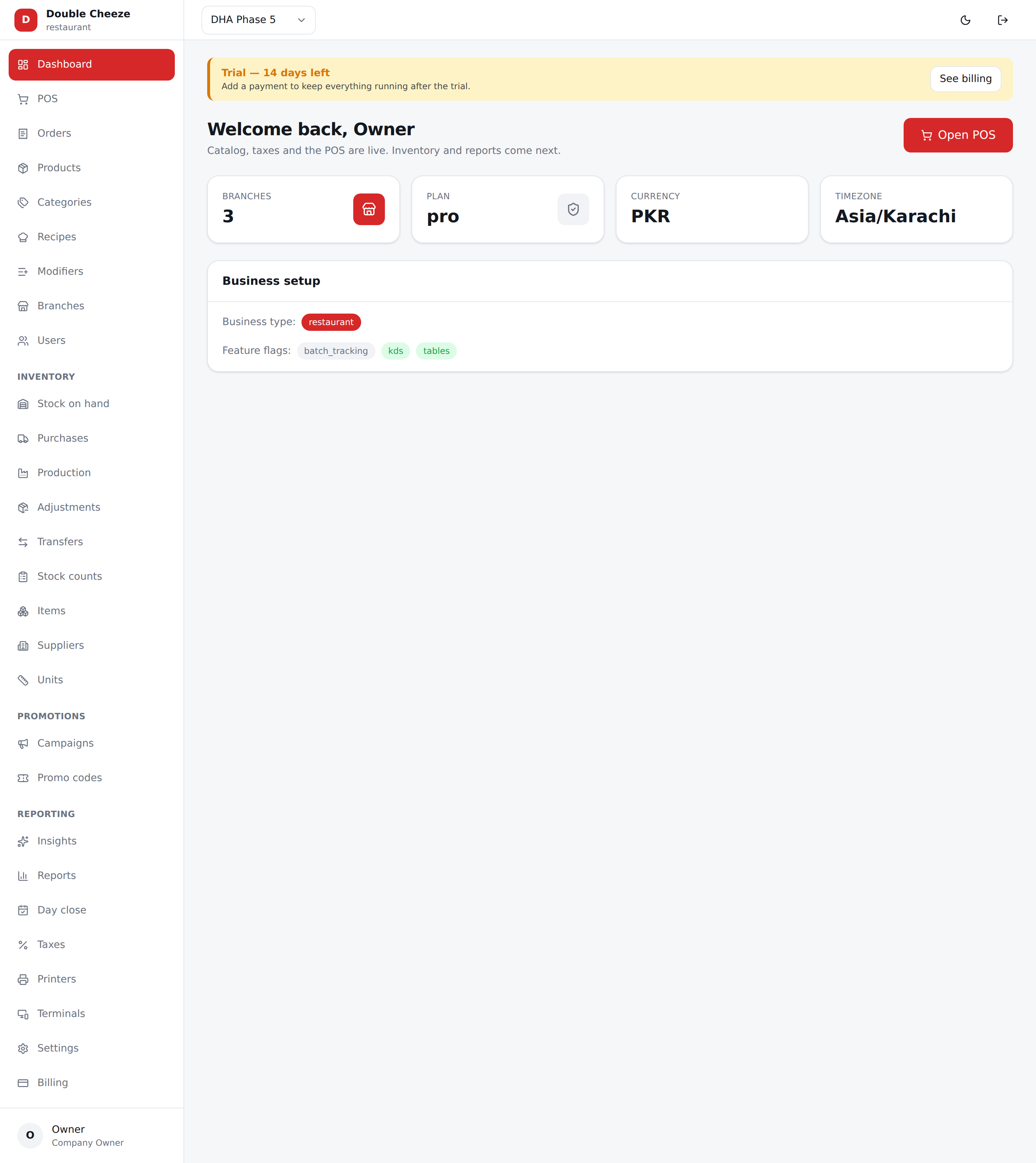
The first screen after signing in, and the one you will look at most. It answers two questions and nothing else: how is today going, and what needs me right now.
| Sales today | Everything taken on the branch's own business day, with an arrow underneath |
| Orders | How many bills, with the same arrow |
| Average order | Sales divided by bills |
| Tax collected | And how much was discounted today, underneath |
| Through the day | A bar an hour, on the shop's own clock — where the lunch and dinner peaks really are |
| How it was paid | Cash, card, wallet, on account |
| Selling best today | The five categories that took the most money |
The arrow compares like for like. At eleven in the morning it is measured against what you had taken by eleven yesterday, not against the whole of yesterday — otherwise every morning would read as a disaster. Where yesterday took nothing by that hour it says so in words rather than printing a percentage; "up from nothing" is not a figure.
Needs attention
A box above the figures, and only when there is something in it. It lists exactly what would stop you closing the day — a table still holding a bill (named by table), an order placed and unpaid, a drawer nobody counted (named by till), a rider or a collector who has not handed their cash in, sales still sitting on a till — plus two things nothing else will ever raise: a business day you never closed, and any shelf that has gone below zero.
Every line has an Open link that takes you to the screen where you can deal with it. A day the shop never traded is not listed: a branch that shuts on Fridays has no Friday to close.
The branch dropdown drives it
Everything on this page is about the branch named in the top bar. Change it and the whole page changes — the figures, the chart and the attention list. A branch manager sees only the branches they run — usually one, and then there is nothing in the dropdown to change.
The top bar
| Branch dropdown | The branch everything you do applies to. Change it before entering stock or reading a report — this is the most common mistake |
| Trial badge | Shown while the company is on trial |
| Moon / sun | Dark mode. It is remembered on this device only — the POS opens in light mode by default because shop lighting is bright |
| Sign out |
The menu
The left menu only shows what your role and your business type allow. A retail company never sees Recipes or Modifiers; a restaurant never sees the margin report. That is deliberate — you cannot switch a feature on by hunting for it, and the server refuses it too, not just the screen.
Sections:
- (top) Dashboard, POS, Products, Categories, Recipes, Modifiers, Branches, Users
- Inventory — Stock on hand, Purchases, Adjustments, Transfers, Stock counts, Items, Suppliers, Units
- Promotions — Campaigns, Promo codes
- Reporting — Insights, Reports, Day close
- (bottom) Taxes, Printers, Settings, Billing
Small things that save time
- Every list has a search box at the top left of the table.
- Delete never destroys history. A deleted product, supplier or recipe is hidden, and past sales keep pointing at what they actually sold. Writing the same one again brings the old row back rather than failing.
- Errors appear inline, on the field that caused them. If a form will not save, the red line tells you exactly which field and why.