
Selling
POS — taking a sale
Menu: POS · Who: cashier, branch manager, owner
The till is full-screen with no admin chrome. It opens in light mode because shop lighting is bright; the mode toggle is per device.
The screen
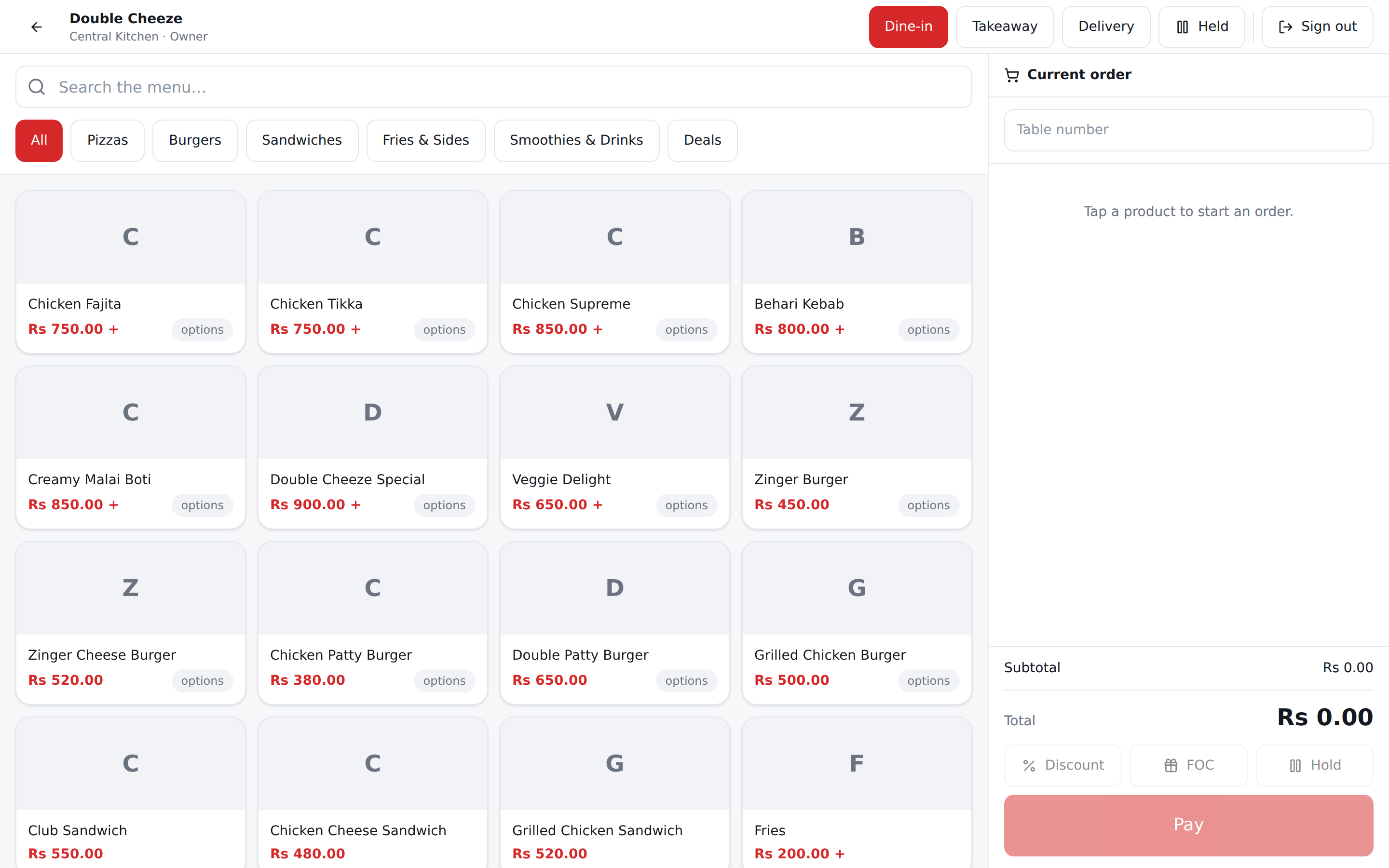
- Left — search box, category tabs, product grid. A product with a photo shows it; the rest show the first letter.
- Right — the order type buttons, the cart, offers, the totals, and the big Pay button at the bottom.
- Top right — Held opens parked orders.
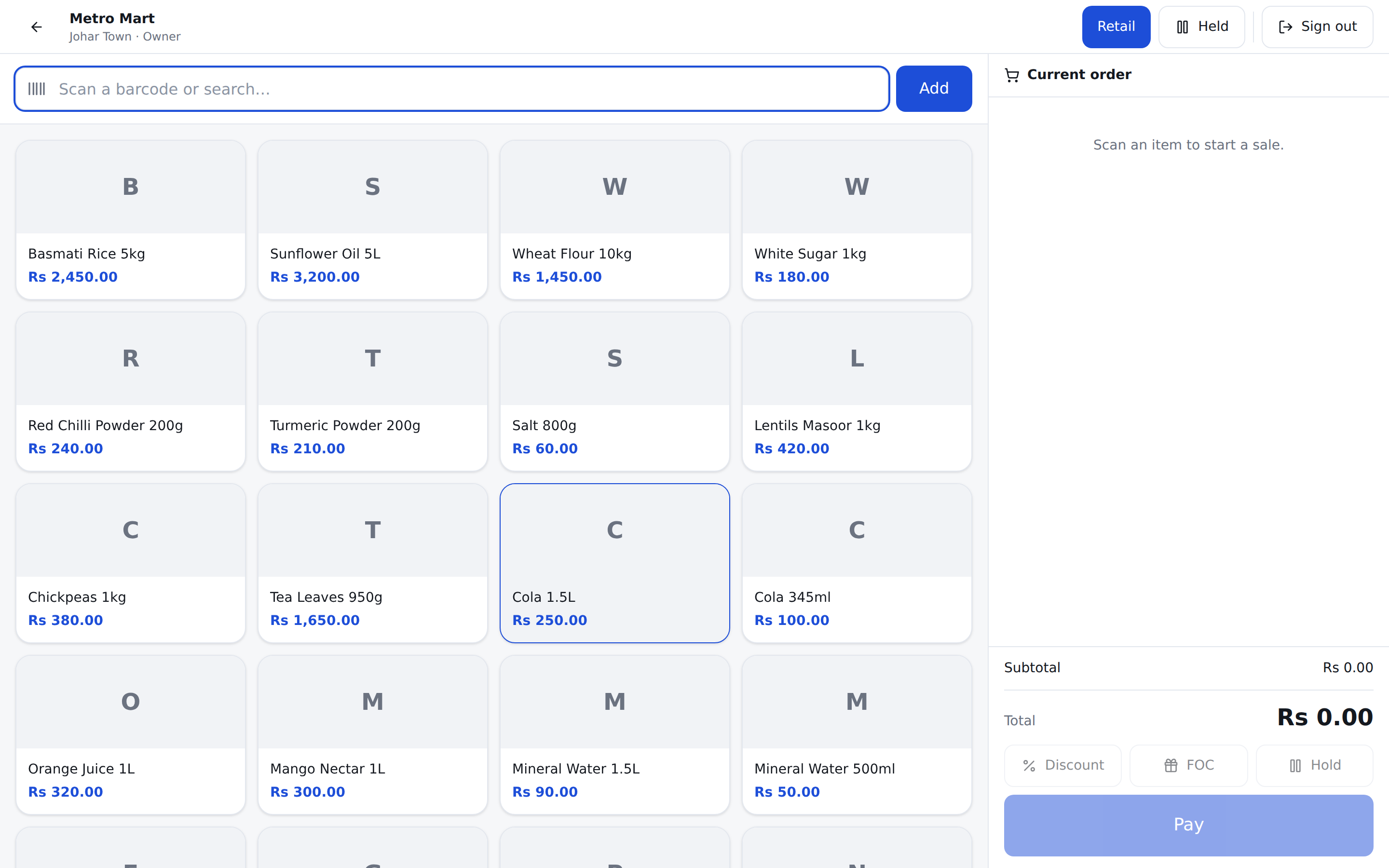
Retail branches get a barcode-first layout: the search box takes scanner input straight away, so scanning adds the item without touching the screen.
Ringing a sale
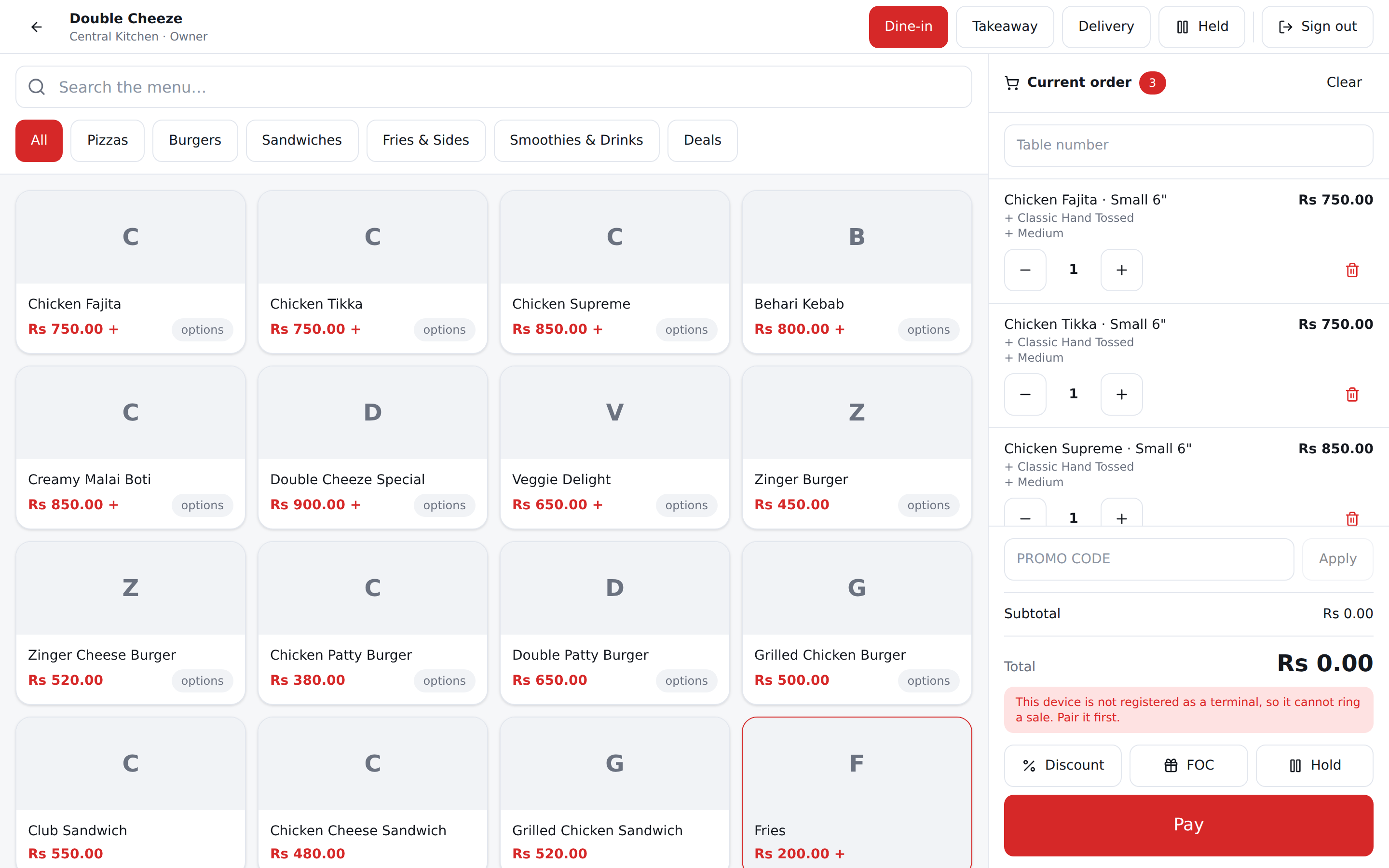
- Pick the order type: Dine-in / Takeaway / Delivery (restaurant) or Retail (shop). Only the types this branch enables are shown.
- Tap products. A product with options opens a popup — choose crust, size, add-ons, then Add to order.
- Adjust quantities with − and +, or the bin to remove a line.
- Dine-in: type the table number. Without it the sale cannot be paid or held.
- Pay.
Every figure on the screen came back from the server. The till never multiplies a price itself — which is why the total, the tax and the discount can never disagree with the receipt.
Offers
Above the totals:
- Campaign chips — offers that fit this cart. One eligible offer applies itself with a tick; tap the ticked one to take it off, and tap it again to put it back. When two fit, nothing is applied until you pick one — ask the customer which they want, and taking the offer off is a perfectly good answer.
- Promo code box — type the customer's code and press Apply. If it cannot be used you are told why in one line ("needs an order of at least Rs 2,500", "this number has already used EID500") and the sale carries on at full price.
A manual discount replaces any offer — the cashier's decision wins even when the campaign was worth more.
Discount and FOC
- Discount — percent or amount, with a reason. Over the cashier's limit it asks a manager for their PIN. Over the company cap it is refused outright.
- FOC — writes the whole order off, total and tax zero. It needs a reason and is reported separately from a discount, with the approver's name.
Payment
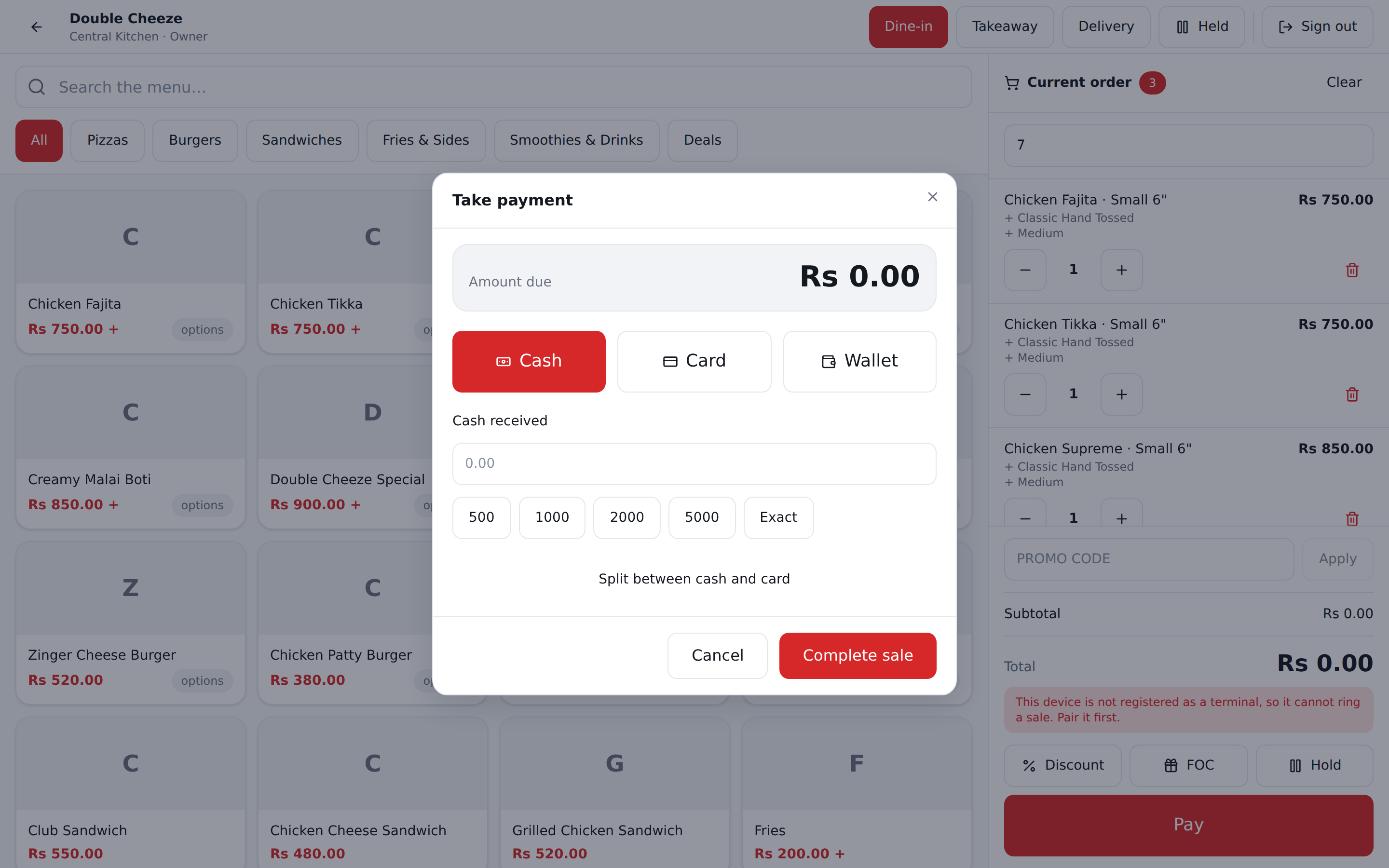
The payment dialog shows the amount due and which rate the tax was worked out at.
- Tap Cash, Card, Wallet or Bank transfer. A button appears only when your shop keeps an account of that kind under Setup → Payment accounts.
- Where you keep more than one — Easypaisa and JazzCash, two banks, two card machines — the dialog asks which. Your default is already picked, so the common payment is still one tap. The receipt prints the account's name ("Easypaisa"), and the Z report shows how much reached each one.
- For a wallet or a transfer you may type the Transaction ID from the customer's message. It is optional; leave it blank and the sale goes through.
- For cash, type what the customer handed over (or tap 500 / 1000 / 2000 / 5000 / Exact) — the change is worked out for you.
- Split between cash and card when they pay part each way. The tax rate blends between the two automatically, and the totals update before you confirm.
- Complete sale.
On account (a khata)
Only where your package includes Credit sales & customer ledger.
On account in the cart is where you name the shop this sale is for. It lists the shops that buy on account, ordered by what they owe, and the strip then shows their balance and their credit limit while you build the cart — so you can ask before the customer has finished choosing. A walk-in you simply type a name for is not an account; only a shop picked off this list can be put on a khata.
Once a shop is on the sale, the payment dialog offers a fourth option, On account. Under it you get what they owe now, what this sale adds, their limit (or No ceiling) and what is still available. Every one of those figures comes from the server.
If the sale takes them past their limit, the dialog says so before you press Complete. What happens then depends on the branch: normally a manager's PIN lets it through — you press Complete and are asked for one — but a branch can set the ceiling to be absolute, and then nobody passes and no manager is sent for.
You are also asked where the goods go: Hand over now takes the stock off the shelf with the sale, like any counter sale; Send with the van puts the order on the dispatch board and the shelf is charged when the goods actually leave.
Money against the khata is taken on the Khata screen, not here — see the customer ledger. Nothing about an account works with the internet down: what a shop owes is counted from rows another till may have moved, so a balance read offline would not be a balance.
Hold and recall
Hold parks the order — for a table still eating, or a customer who has gone to the car. A held order takes no order number; the number is given when it is finally paid. Open Held to bring one back, add to it, and pay.
The receipt
The receipt appears as soon as the sale is saved, and it is rendered by the server, so what you see is exactly what prints. Print sends it to this branch's default receipt printer; the button names it ("Print · Counter"). If that printer is one only a till app can reach, the dialog says so — and says WHICH app — instead of pretending.
Everything on it is a switch under Settings → Receipt & Printing.
Voiding a sale
Open the order and press Void with a reason. It needs a manager's PIN if the setting says so. Voiding puts the stock back on the shelf at the cost it left at, and gives back a promo code use. A voided sale is excluded from every report.
A void is refused once the day is closed — reopen the day first.
When stock runs out
If Allow negative stock is off, a sale the shelf cannot cover is blocked and the cart
shows exactly what is short. With it on the sale goes through and stock goes negative, to
be fixed by a stock count.