
Stock
Inventory
Menu: Inventory section · Who: owner, branch manager
Stock lives per branch. Both the quantity and the cost are kept per branch, so one shop buying cheese dear does not move another shop's food cost.
Set up in this order: Units → Suppliers → Items → Purchases.
Units
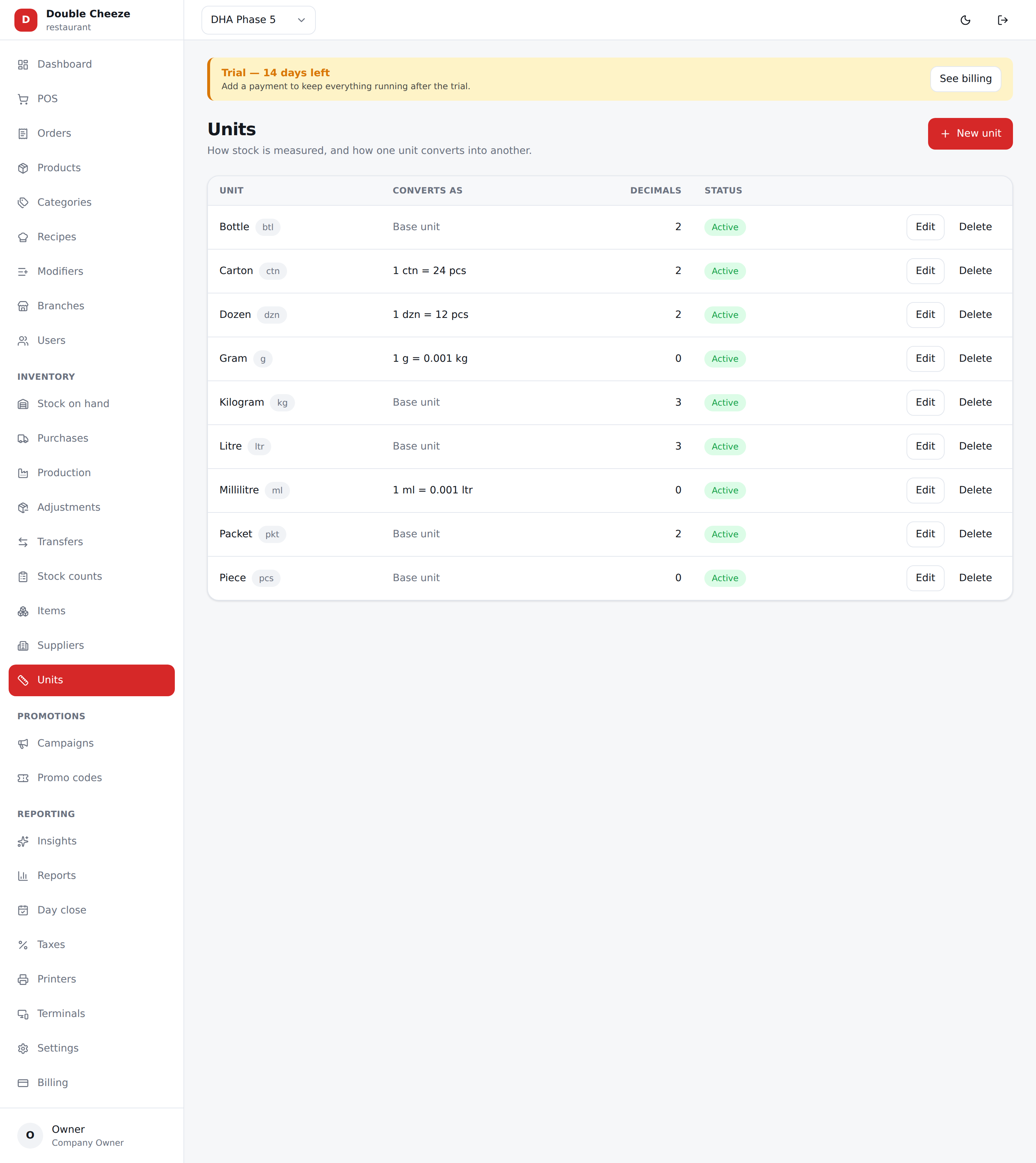
Menu: Inventory → Units
How stock is measured, and how one measure converts into another. Every company starts with a standard set (kg, g, ltr, ml, pcs, dozen, carton); rename or add as you like.
| Field | Notes |
|---|---|
| Name / Short code | "Kilogram" / kg |
| Converts to | The base unit this one is expressed in. g converts to kg |
| How many | 0.001 — one gram is 0.001 kilos |
| Decimals shown | 3 for weights, 0 for pieces |
A unit converts one step, straight to a base unit. You cannot chain g → kg → tonne, and two units cannot point at each other. That keeps every conversion exact.
Suppliers
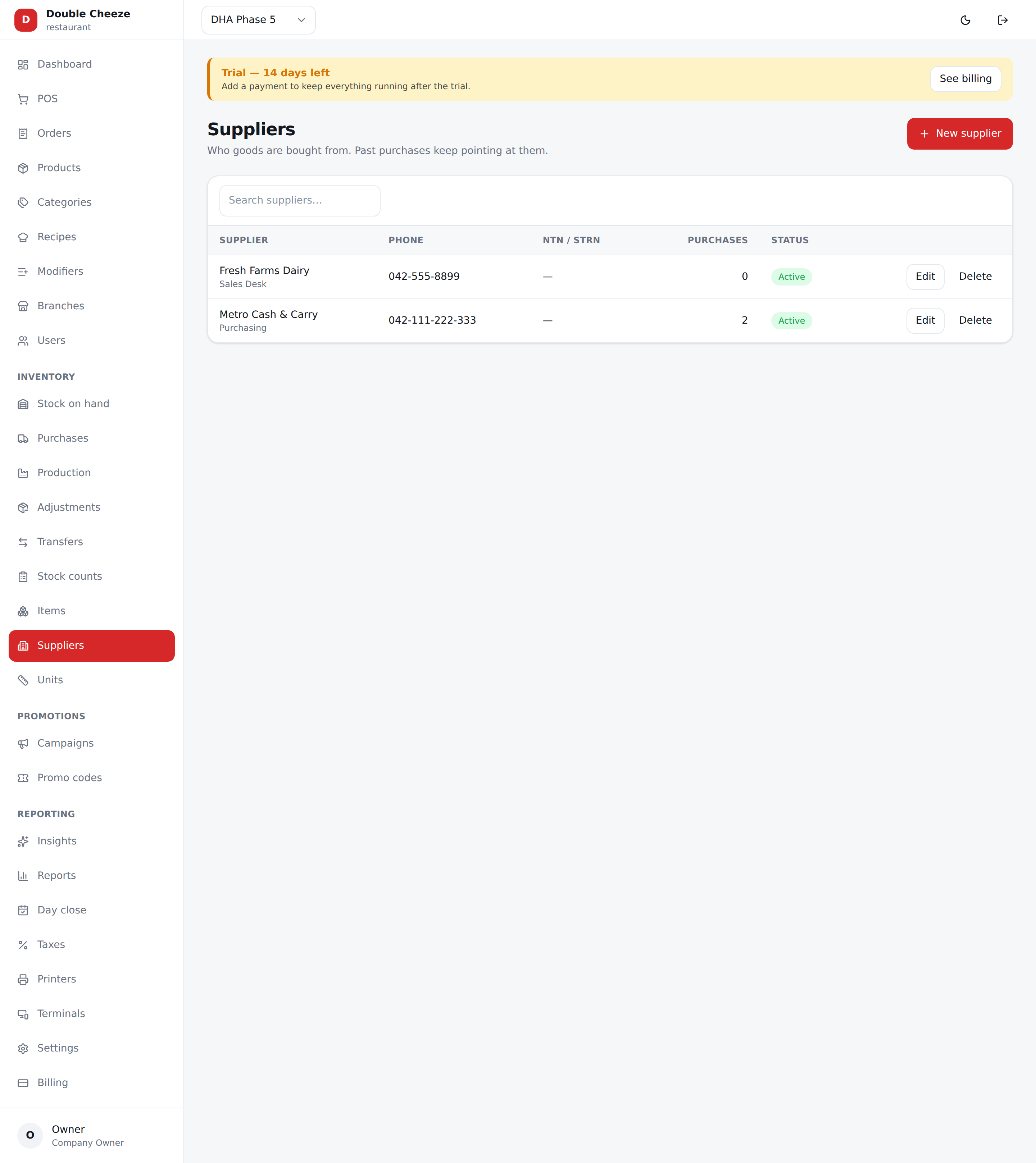
Menu: Inventory → Suppliers
| Field | Notes |
|---|---|
| Name | Unique in your company |
| Contact person, Phone, Address | |
| NTN, STRN | Their numbers, for your input tax records |
| Payment terms | Days they give you before a bill is due. 0 is cash on delivery, which is what most shops actually do — it is never left blank |
Terms decide one thing and nothing else: the due date stamped on a delivery when you receive it, which is what the payables screen calls past due. Renegotiating them later never moves a bill that has already landed.
Items
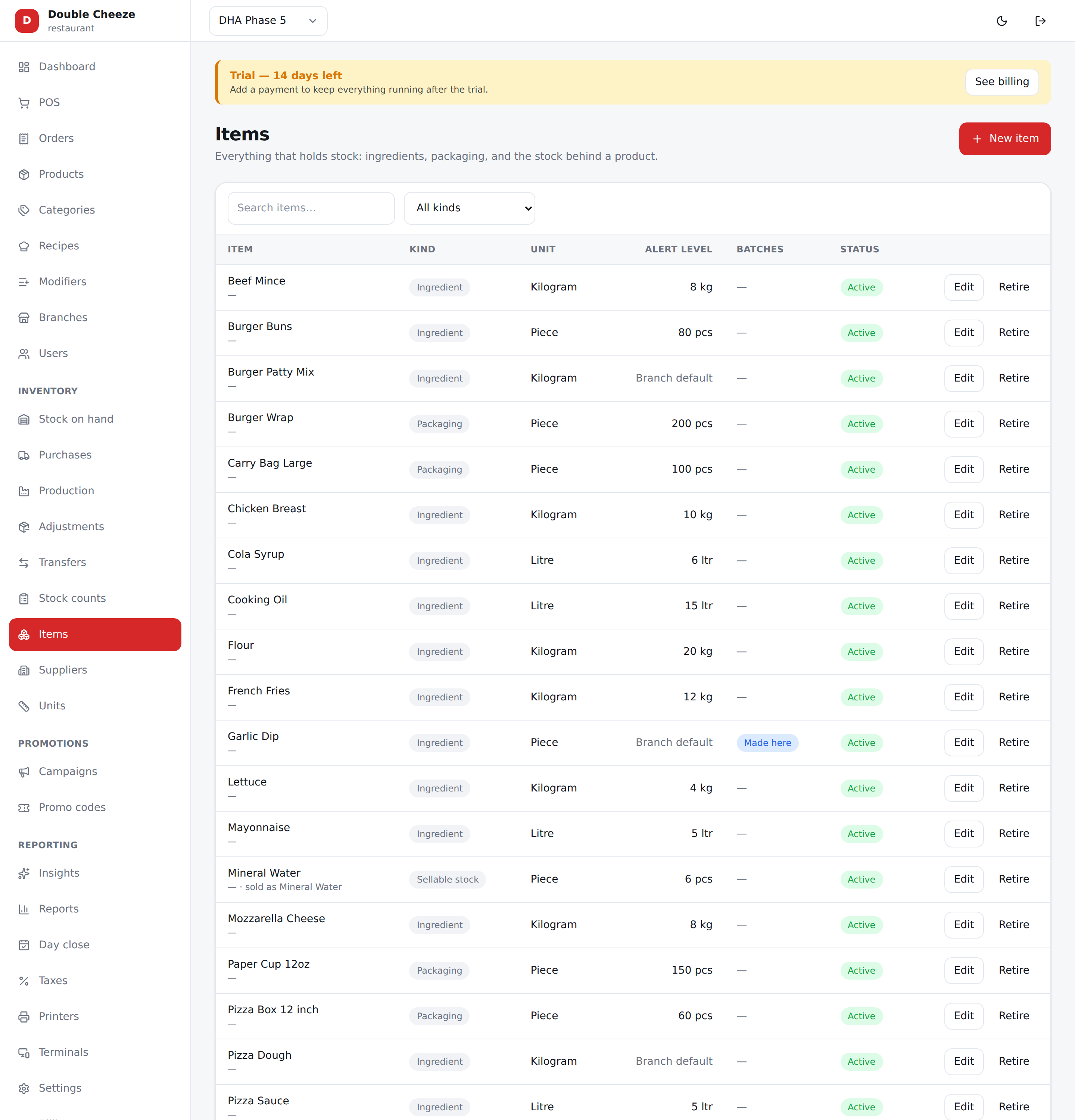
Menu: Inventory → Items
An item is a thing on a shelf. It is not the same as a product: a product is sold, an item is stocked.
| Field | Notes |
|---|---|
| Name | "Mozzarella Cheese" |
| Kind | Ingredient (used by recipes), Sellable stock (sold as-is), Packaging (boxes, bags) |
| Unit | How it is stocked — buy in cartons, stock in pieces |
| SKU | Optional |
| Alert level | Below this it shows as Low on the stock page |
| Track batches and expiry | Per item, if your company has batch tracking on |
For retail, ticking Track stock on a product creates its sellable item for you. You can still rename it here.
Inactive and deleted are not the same thing. An inactive item is still on this list and simply not offered; one tick puts it back. A deleted item is off the screen — its stock ledger stays, so every purchase and count behind it still reads, and writing the same item again brings this very row back.
Changing many at once
Tick the box at the left of each row — or the one in the header to take every row on screen — and a bar appears above the table with what you can do to all of them:
| Activate / Deactivate | The same switch the form carries, on every ticked row |
| Move to category… | Files them all under one category. Uncategorised is on that list too |
| Delete | Confirms first. Soft, like every delete here: the stock ledger stays, so past purchases and counts still read correctly |
Filtering or searching clears the ticks, because a count that outlives the list it was counted from means nothing. If one of the rows has gone since the page loaded — somebody else deleted it — the whole thing is refused and nothing changes. That is deliberate: doing thirty-nine of forty and saying it worked is how a line stays on the till that everybody believes came off it.
Only an owner or a branch manager sees the tick boxes.
Stock on hand
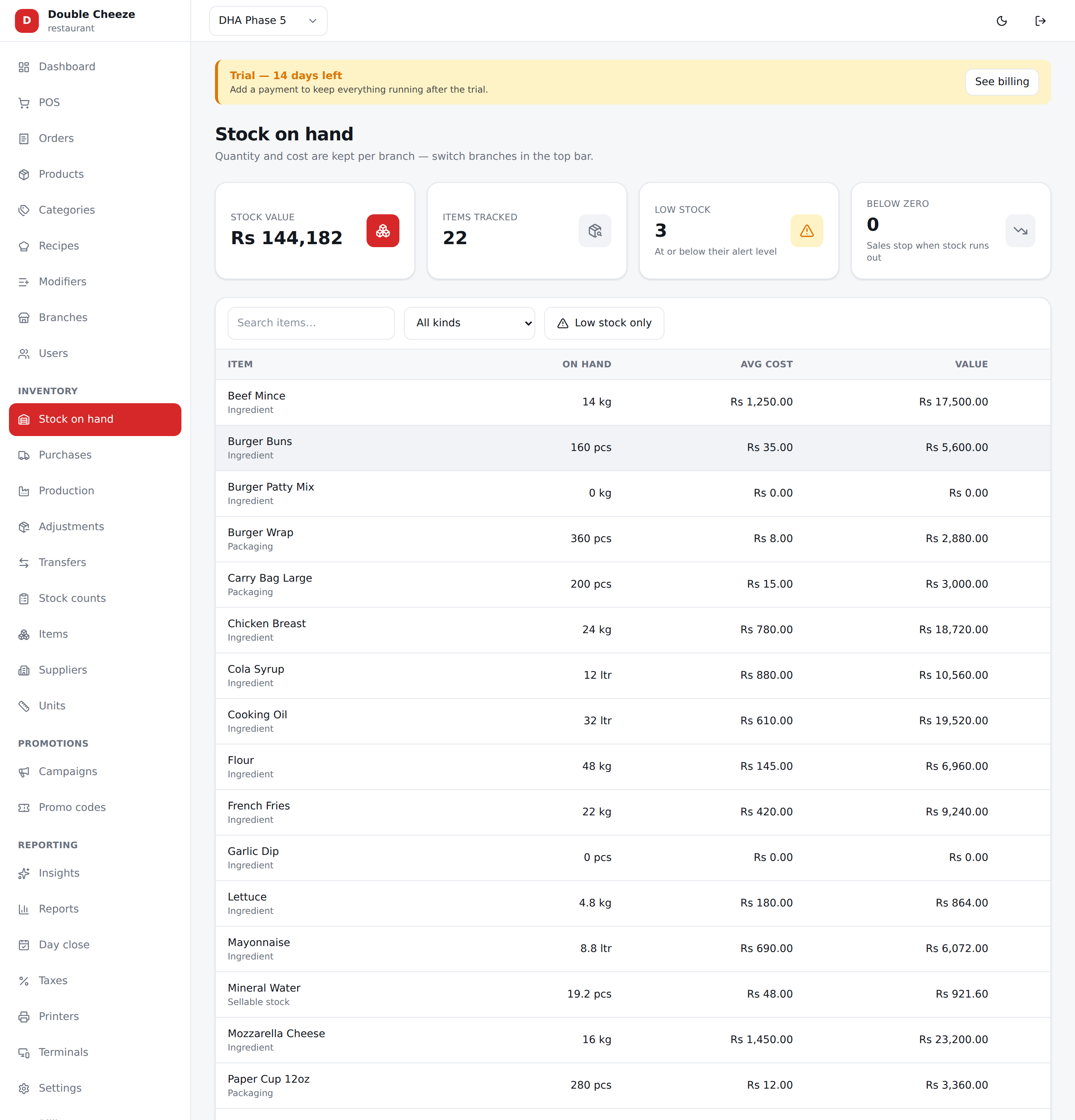
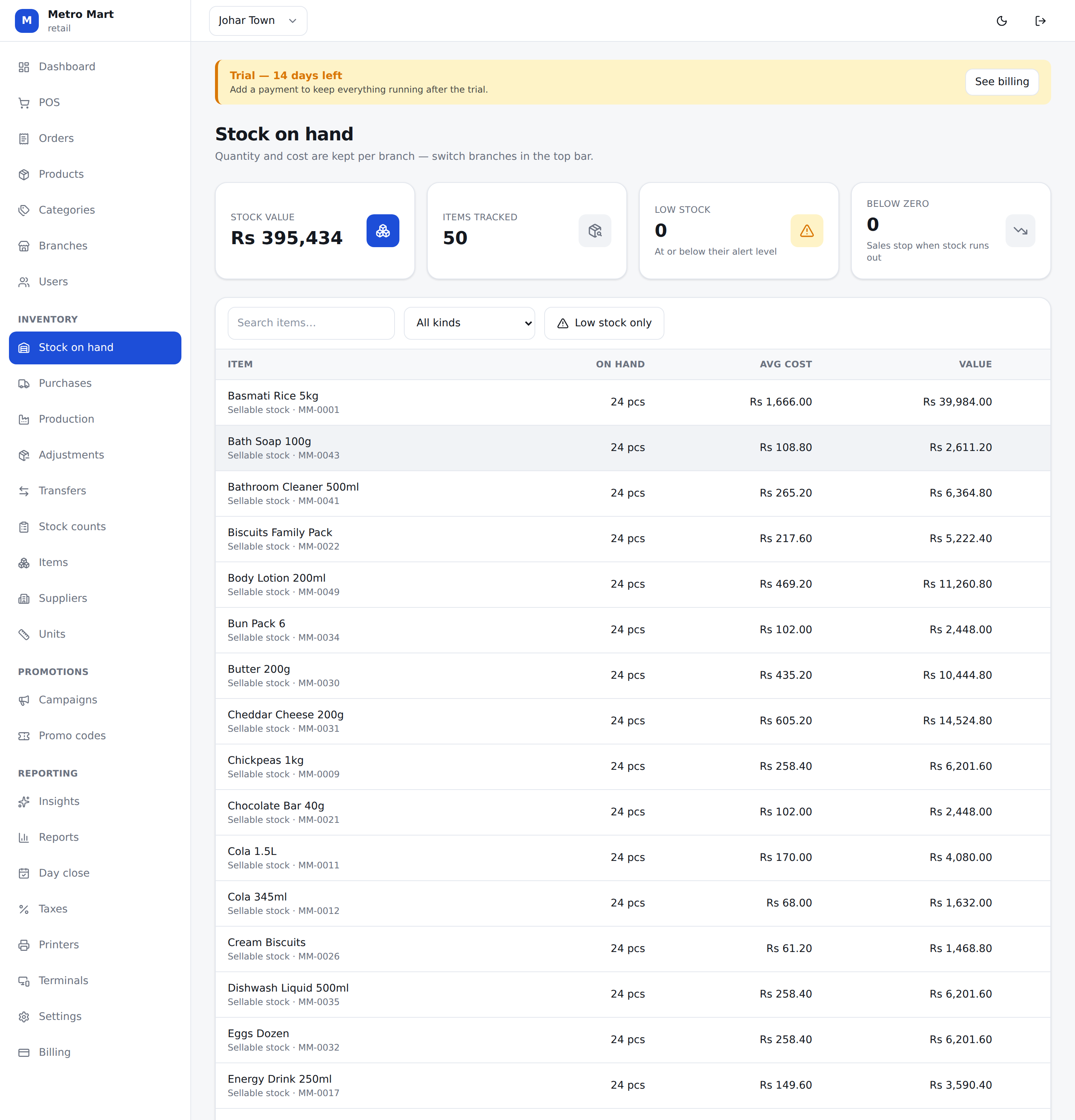
Menu: Inventory → Stock on hand
What is on the shelf at the branch in the top bar, valued at that branch's own average cost. Four figures at the top: stock value, items tracked, low stock, below zero.
Click any row to see its ledger — every movement that made the number what it is, with the balance and average cost after each one. If a number looks wrong, the answer is always in the ledger.
stock_ledgeris the only truth about stock. The on-hand figure is a running balance written at the same moment as the ledger row, never edited by hand.
Production
Menu: Inventory → Production. A batch the kitchen made: raw material off this branch's shelf, the finished item onto it, priced by what it actually consumed. It is how a commissary fills the shelf a shop later sells from — and how a shop that makes its own dough records it.
Only items with Made in batches on (and a recipe) can be produced.
Purchases
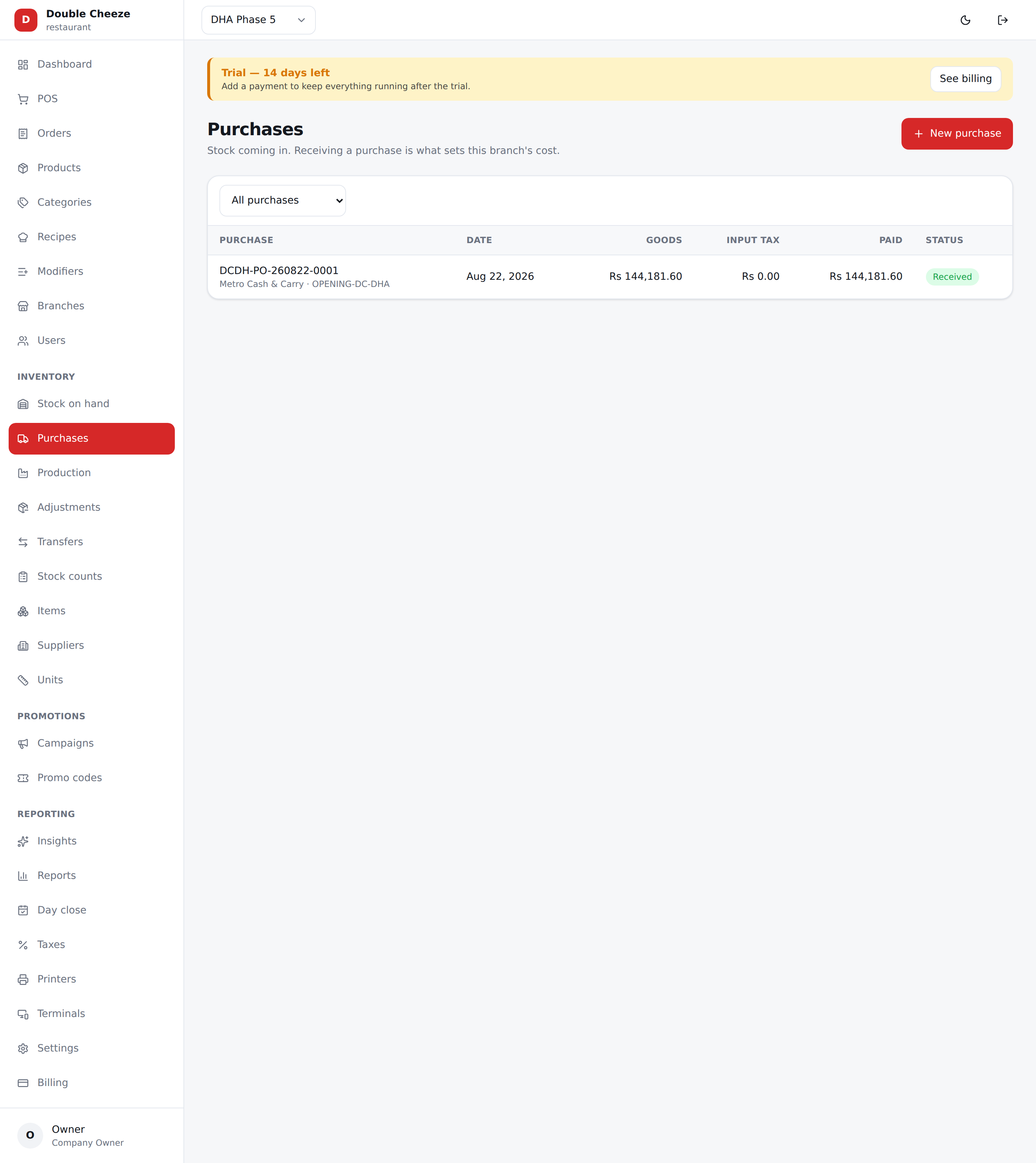
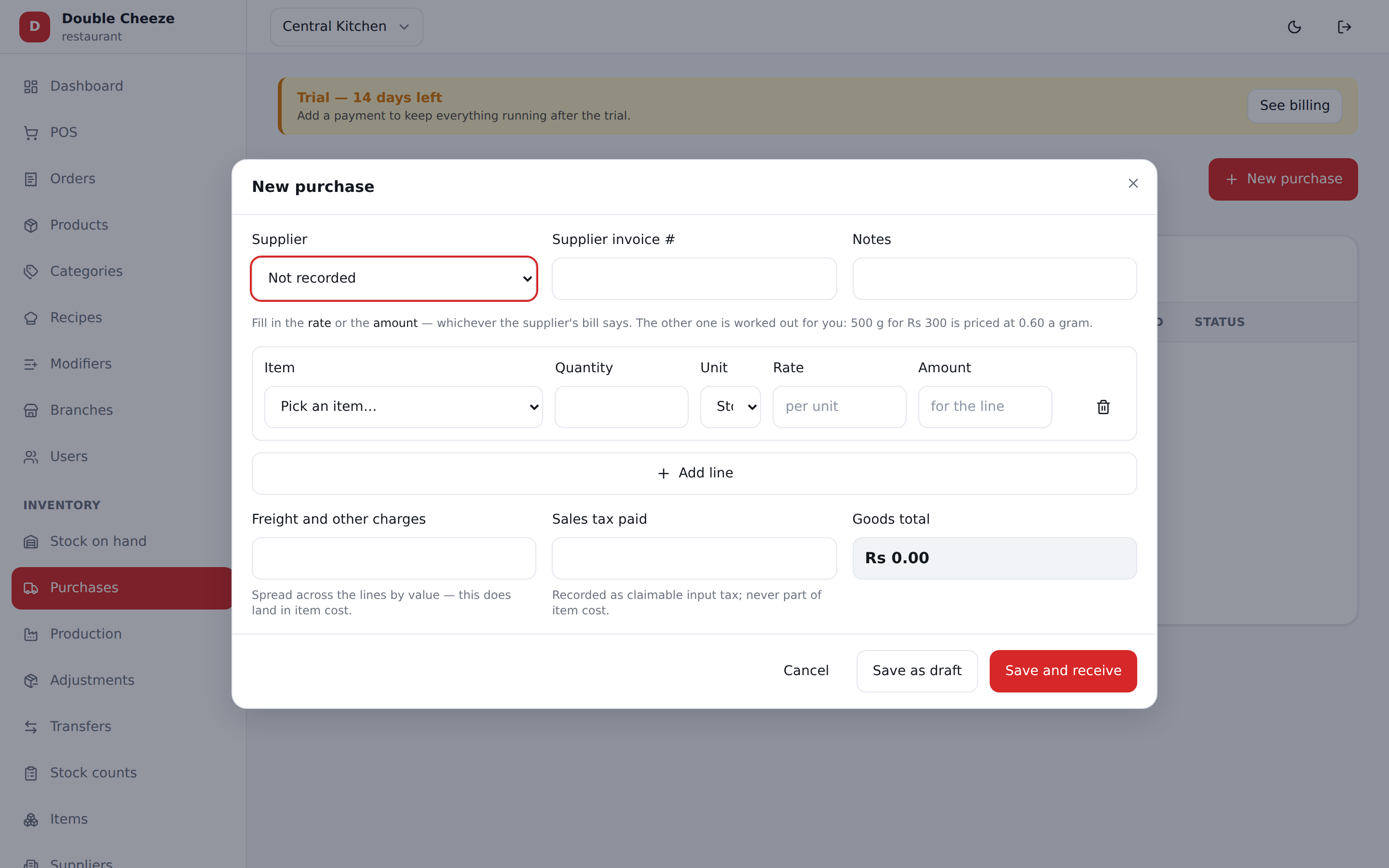
Menu: Inventory → Purchases · This is also how you enter opening stock.
| Field | Notes |
|---|---|
| Supplier | |
| On account | Tick it where the supplier is to be paid later. The bill then lands on Inventory → Payables when the goods are received — see Payables |
| Supplier invoice # | Their bill number, for your records |
| Expected delivery | The day the supplier promised. Optional — leave it empty if nothing was agreed |
| Lines | Item, quantity, and the price — see below |
| Batch number / Expiry date | Per line, when the item tracks batches |
| Freight and other charges | Spread across the lines by value and added to cost |
| Sales tax paid | Your claimable input tax — recorded, but not part of item cost |
Price: rate or amount paid
A shop bill says "500 g for Rs 300", not "Rs 0.60 a gram". So a line takes either:
- a rate per unit, or
- the amount paid for that line.
Whichever you type, the other is worked out for you, and the amount you typed is the truth: 7 kg for Rs 1,000 stores a rate of 142.8571/kg and a line total of exactly 1,000.00, however the rate rounds. The browser never divides it itself.
At the bottom you see Goods, Freight and charges (spread into cost), Input tax (not part of cost) and Paid to supplier.
Order first, goods later
Saving a purchase never touches the shelf. An order is usually placed days before the van turns up, so Save purchase order records what you asked for and nothing else. It sits as a Draft, and the list shows what you ordered against the Expected day — in red, marked overdue, once that day has been and gone and the goods still have not.
A draft is edited freely: open it and press Edit. Quantities change on delivery, a rate turns out different, the supplier moves the date — all of it is ordinary editing, because nothing has been posted yet.
Receiving
A purchase is a draft until you receive it. Open it once the goods are actually in and press Receive into stock — that is what posts the ledger and moves the weighted average cost:
old: 10 kg @ 900 = 9,000        new: 5 kg @ 1,100 = 5,500
                    15 kg @ 966.67
What was promised stays on the document afterwards; what actually happened is the day it was received.
And what was paid at the door
Receiving asks one more thing: Paid at the door, out of the till, the box or the bank. That is the van man who leaves the crates and takes his money on the spot — and typing it here is what records it, as an ordinary payment against that bill. The drawer knows about it at day close, it shows on Suppliers → Payments, and the delivery is on the supplier's statement with the money against it.
How much is blank for the whole bill. Type less where only part was handed over and the rest went on the account — half in cash, half on the khata — which is the case On account is for.
Leave it on Not recorded and the delivery is booked in with nothing said about the money. That is the honest answer for a bill going on the account, and it is what every delivery booked in before this said. It never guesses at the till.
Correcting a received purchase
A received purchase is corrected, never quietly edited. Open it and press Correct (the button only appears when the purchase can still be corrected), fix the lines and give a Reason for the correction: the ledger it posted is reversed at the cost the goods came in at and posted again from the corrected lines, under the same document number, with the before/after totals kept on the record. The purchase then shows a Corrections list — every correction, who made it and what changed.
It is refused if the day is closed, or if the goods have already been sold or used — that case is a stock adjustment, not an edit.
Adjustments
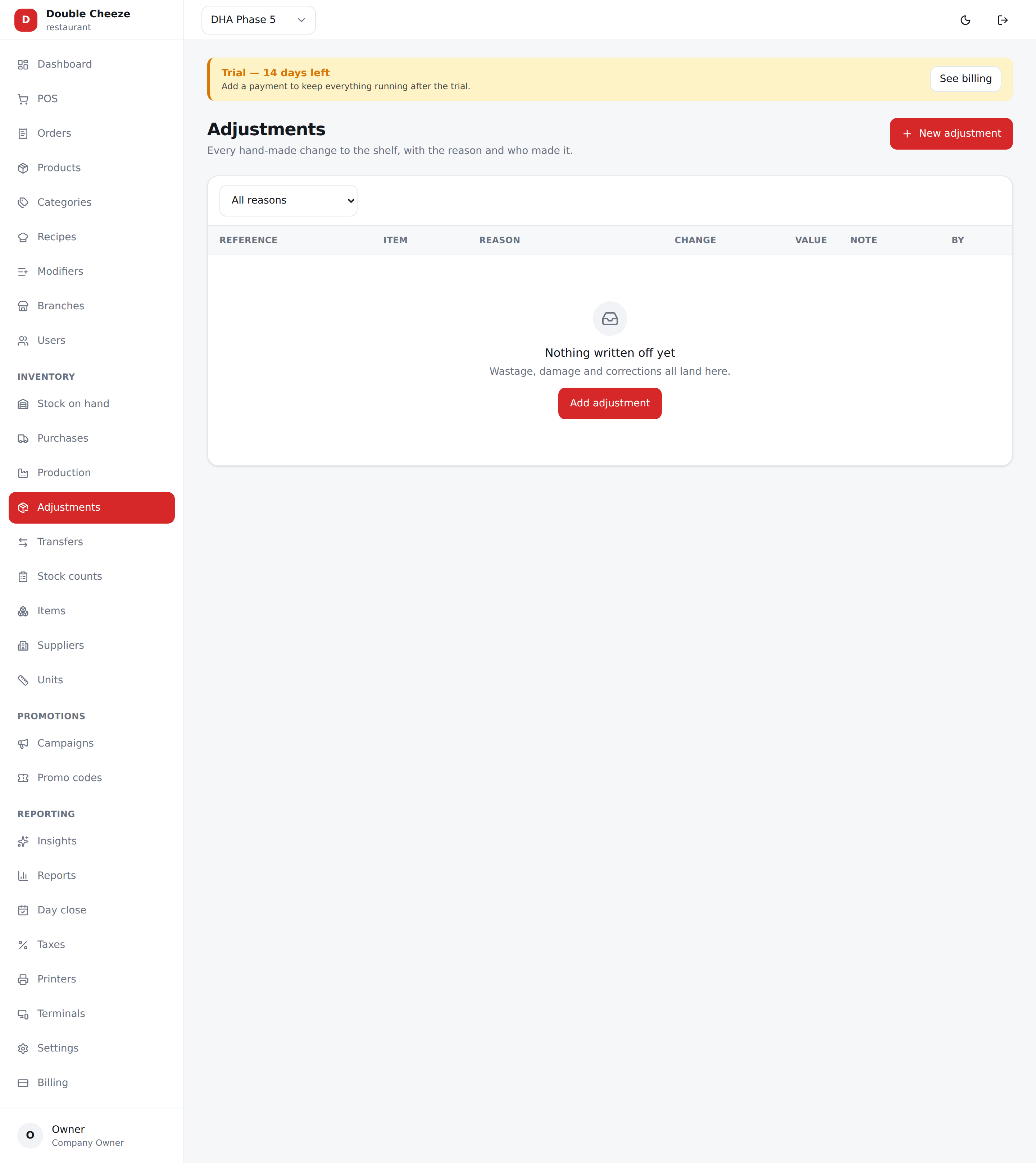
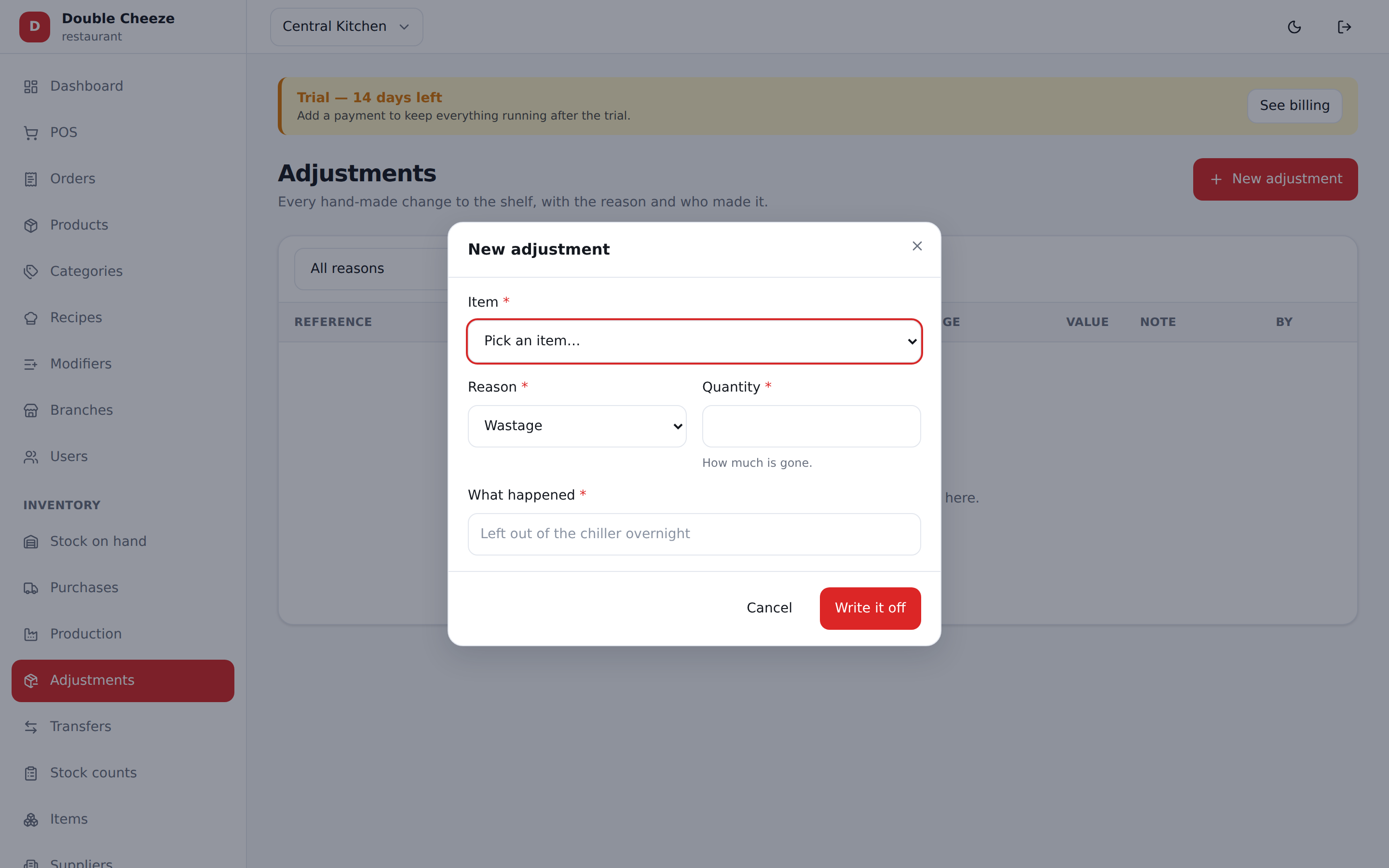
Menu: Inventory → Adjustments
Stock leaving or arriving for a reason that is not a sale or a purchase.
| Field | Notes |
|---|---|
| Item | |
| Reason | Wastage, Damage, Expiry, Theft, Correction, Opening |
| Quantity | Negative takes stock off, positive puts it on |
| What happened | A note — this is what you will read in the wastage report next month |
Indents
Menu: Inventory → Indents · Inventory → Demand · Who: owner, branch manager
An indent is a branch ASKING. It moves no stock at all — nothing is deducted, nothing is reserved and no cost is worked out. It is a written request the kitchen reads, and goods only move when the kitchen answers it with an ordinary transfer.
Raising one
Menu: Inventory → Indents
Pick the kitchen you are asking, the day you need it for, and the lines. Fill from what is running out starts the grid from the reorder arithmetic instead of a blank page — every line is still yours to correct, and nothing is written until you save.
Save it as a draft and it is yours to edit; Send to kitchen and it goes to whoever has to sign it, or straight to the kitchen where nobody does. A draft, an indent waiting on a signature and a sent indent can all be cancelled, and none can be re-opened afterwards. Once what you asked for has arrived — or once you have stopped waiting for the rest — Close it off, which takes it off the kitchen's list. The dialog names how many lines are still owed before you do.
Who you may ask is your commissary, not any branch you like. A company that has marked no commissary at all may ask any of its other branches instead, and a commissary that is pinned to particular branches (Setup → Branches) cannot be asked by the rest.
How far ahead you may ask is Settings → Inventory → Indent: furthest day ahead (30 out of the box), which is what refuses a mistyped year while you are still standing there to correct it. A branch may also set an Indent cutoff time, past which tomorrow's ask is refused — it is read on the KITCHEN's clock, because the kitchen is who has to make it.
Who signs it off
Menu: Setup → Indent approvals · Who: owner
Out of the box nobody does: an indent goes straight to the kitchen the moment a branch sends it, which is how every company starts and is all a one-shop business ever needs.
A chain is a list, in order: "the asking branch's manager, then head office over fifty thousand." Each step has a name you choose, somebody to sign it — a role (whoever is the asking branch's manager, or any owner) or one named person — and an optional figure it only applies from.
Name a role rather than a person where you can. A named approver on leave stops every indent in the company. The role is resolved against the branch that asked, so "the asking branch's manager" means that shop's manager and never another's.
The chain is the company's by default. Pick a branch at the top to give that shop a chain of its own, which replaces the company's rather than adding to it. A branch with no chain of its own works under the company's, and the screen says which of the two you are looking at.
What it is worth decides who signs, and that figure is an estimate: the quantities asked for, priced at the kitchen's own average cost. It is not a price — an indent has no price — and it decides nothing but which steps apply.
An owner can sign any step. So can the person who raised it, where they hold the role — in a two-person shop there is nobody else, and the document says plainly that they signed their own.
Once an indent is sent, the chain it entered is frozen onto it. Editing this screen afterwards never changes what a document already in flight still needs, and never removes a step somebody has already signed.
Turning one down, and sending it again
A refusal at any step — or from the kitchen itself — sends the whole indent back to the branch with a reason, which is required. Nothing has left any shelf either way.
The branch then fixes it and sends it again from the same document: Fix it on the row, with the reason printed at the top of the form. That starts the chain over from the first step, because somebody who signed off forty kilos did not sign off eighty. Every signature and every refusal is kept, and a document on its second run says so.
Reading everybody's demand
Menu: Inventory → Demand
The kitchen's own screen: every outlet's ask for one date, added up by item, with what this shelf actually holds beside it. Short is what cannot be covered off this shelf and is red only where there really is a gap.
Each line says what to do about it, and there are only three answers:
| Issue | The shelf covers it. Send it. |
| Make | Short, and this kitchen has a recipe for it. |
| Buy | Short, and nothing here makes it. Somebody has to order it. |
A covered shelf always reads Issue, even for something the kitchen could make. Something already made is not made again, so only a shortfall is ever a question.
Under the list, To make it — the raw material that making the shortfall would eat, against this kitchen's own shelf. 340 dough needs 68 kg of flour and 5.1 L of oil. Nothing new works that out: it is the same arithmetic a real production run uses, so the two can never disagree.
"Free to use" is not "on this shelf". An item can be both a line somebody asked for outright and what a dish is made of, and what the list above will take is already spoken for. What is left over is what you can actually make with, and it is what Short is worked out from.
Raise a purchase order pre-fills one from everything this kitchen cannot cover — the raw material it is short of, plus the lines it cannot make at all. It is saved as a draft at the kitchen, with a note naming the day it was raised from, and nothing is ordered until somebody opens it under Inventory → Purchases at that branch and sends it. You type the rate: a rate nobody typed would read as free.
A purchase order is not tied back to one indent, on purpose. The kitchen's flour shelf is short because of exploded demand from several outlets, plus its own use, plus whatever cover the buyer wants — it belongs to no single ask, and a link pointing at one would be a trail that is not true. What is true is the one the note records: an indent, a date, a shelf that was short, and an order raised that day.
The screen names its kitchen above the date, because the branch in the top bar is usually a shop rather than the kitchen and the two are not the same question. Where a company keeps several commissaries, that is a picker.
Open a row to see who asked for what. From a branch's line:
- Issue raises an ordinary transfer for that branch, linked to the line it answers. Send it now and the stock leaves this shelf; save it as a draft and nothing moves yet. Send less than was asked and the rest stays outstanding — one van can answer yesterday's leftover and today's ask together.
- Reject turns the whole indent down, with a reason the branch reads. Nothing has left any shelf either way.
What has been issued is counted from the transfers themselves, never typed anywhere. So a transfer corrected, cancelled or received short moves what the indent says is outstanding with nothing to keep in step by hand.
The report
Menu: Reporting → Reports → Indent fulfilment (under Stock)
One row per branch per item over a range: asked, issued, and what was short. Short reads negative, the shelf's own convention.
Transfers
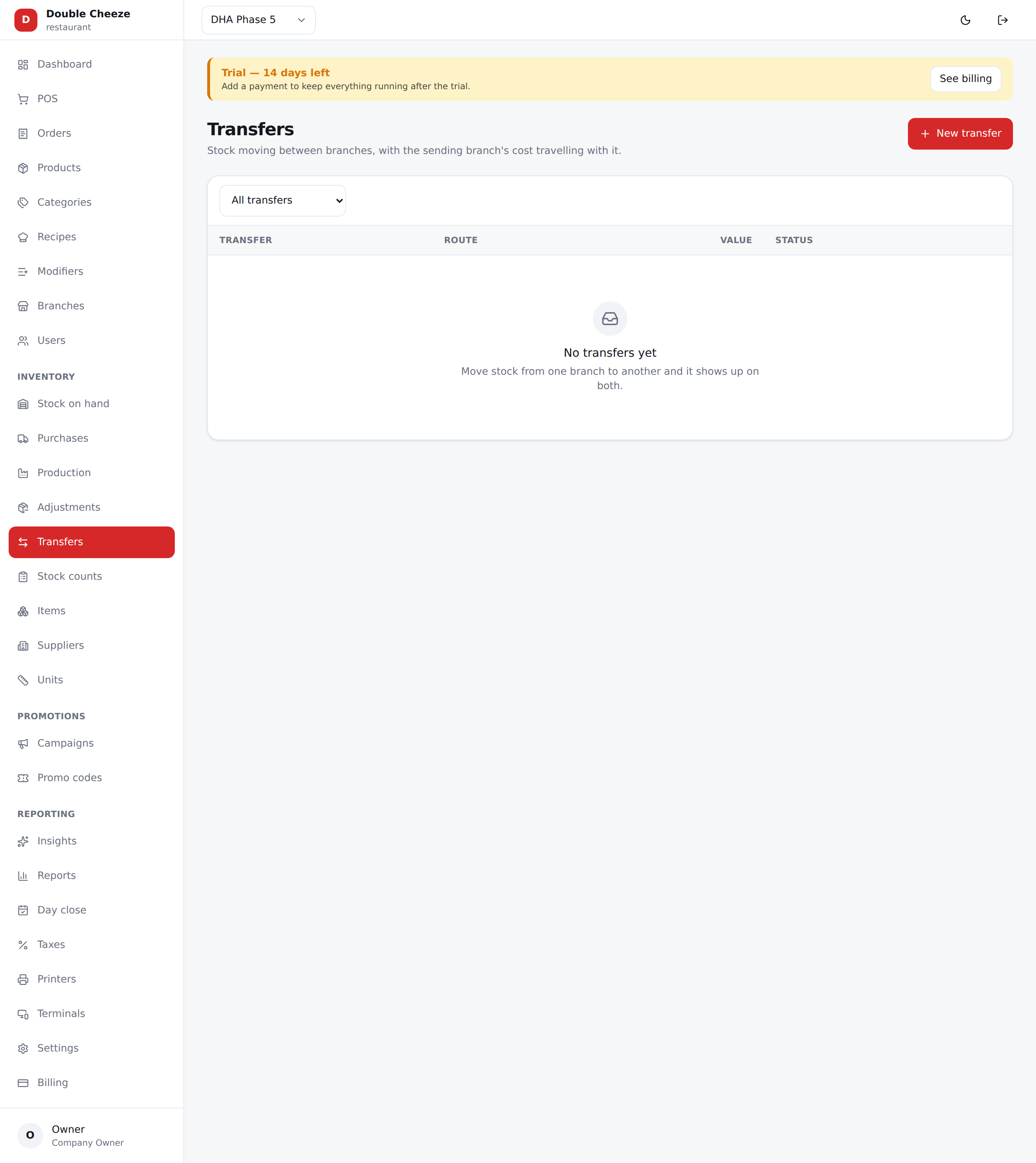
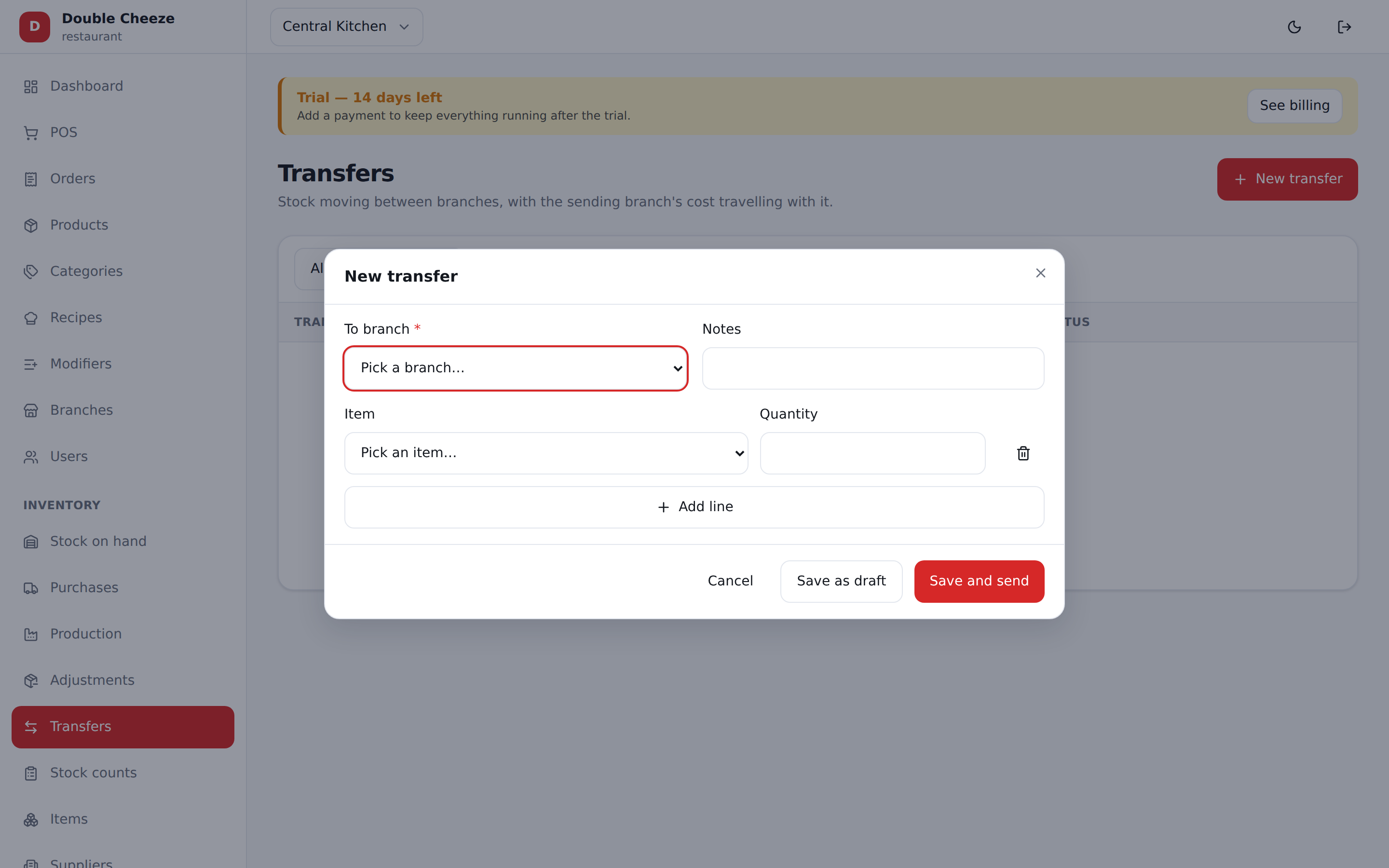
Menu: Inventory → Transfers
Moving stock from the branch in the top bar to another.
A transfer is two-sided: sending deducts the source branch immediately (the stock is "in transit" and belongs to neither shelf), and the destination credits it when it is received. The sending branch's cost travels with the goods, so the receiving branch's average is not distorted.
Receiving is the destination's own job, and nothing happens until it does it. Until the transfer is received the stock is on nobody's shelf — so a branch that forgets is short of goods it was sent, with nothing on its own screens to explain why. Two things now say so:
- The receiving branch's dashboard raises it once the transfer is older than Settings → Inventory → Transfer expected within (days) (one business day out of the box, and 0 means it is expected the same day). Before that it is a van on the road rather than a mistake, and a banner that fires every time anybody sends anything is one people learn to ignore.
- Reports → Stock → Stock in transit lists everything standing, at both ends, oldest first — and, over the date range, anything that is still unaccounted for.
Receiving, and sending some of it back
Press Receive and the dialog asks about each line separately, starting from "it all arrived" — which is the usual evening, so a receipt that went well is one press.
Where it did not, each line takes three figures:
- Kept here — what actually went onto this branch's shelf.
- Sent back — what went back on the van, with the condition it went back in.
- Lost — what never arrived and is not coming back.
The condition is not paperwork; it decides where the sender's stock ends up:
| Condition | What happens at the sending branch |
|---|---|
| Good | The goods go back on its shelf and stay there. Five sent, three kept, two good ones back — the sender is two better off. |
| Damaged | They go back on the shelf and are then written off. Its sellable stock is unchanged, and the loss is on the record as damage. |
| Expired | The same, written off as expiry. |
So two that came back because the branch only needed three are stock again, and two that broke in the van are not added to anybody's stock — but both are on the stock ledger, which is how the wastage report can say what became of them. A single netted figure could never tell "we got them back" from "they were destroyed on the way".
Reason beside the condition is a free box — "only needed 3", "crushed in the van" — and it is kept on the document.
Stock that never arrived
Lost is for what reached nobody — dropped off the van, taken, simply never there. It is written off against the sending branch, because that is the shelf it left and it reached no other; a branch is never charged for goods it can prove it never had. It shows in Reports → Stock → Wastage as Lost in transit, its own reason rather than lumped in with kitchen wastage or filed as theft, so a shop arguing with a transporter has the figure on its own.
Nothing is written off on its own. You have to say it is lost — a carton still on the van coming back tomorrow is not a loss, and a gap in the arithmetic is not an answer.
If it turns up later, the sending branch puts it back. Open the transfer and press Found it on that line: the stock goes back on their shelf at the cost it left at.
What was written off stays on the document at what it was, with what was found beside it — "2 lost (1 found)". Two different facts, and one number reading 1 could not tell you either.
What is neither kept, sent back nor written off is unaccounted for, and the dialog says so while you are still typing. Five sent, three kept and one handed back leaves one that nobody can explain: it is not quietly treated as returned, because nothing went back on any shelf for it, and not treated as lost either, because nobody said it was. It stays on the in-transit report until somebody works out where it went.
Stock counts
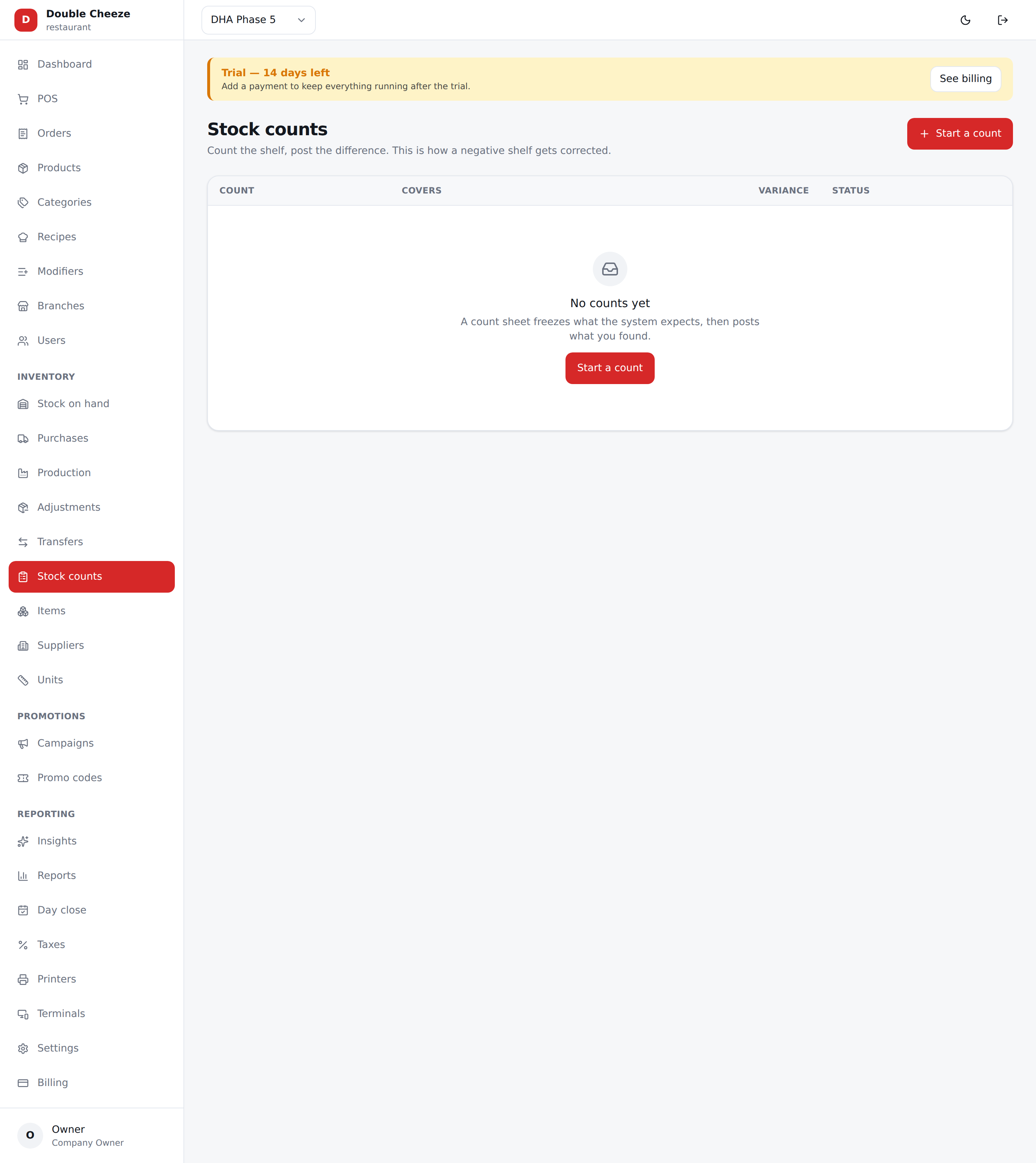
Menu: Inventory → Stock counts
- Open a count and choose what is being counted — everything, one kind, or a few items.
- The sheet freezes what was expected at the moment you opened it.
- Count the shelf and type what you actually found.
- Post it.
Only the variance is posted, as one ledger row per item. The sheet keeps the expected figures, so you can always see what the difference was and when.
This is also how you fix negative stock after a day of selling with
Allow negative stock switched on.