
Setting up
Settings
Menu: Settings · Who: owner (company-wide and any branch), branch manager (the branches they run)
Everything that could differ between two businesses is a setting, not something we hard-code. Every setting has a sensible default, so a brand-new company works before you touch this page.
Company setting or branch setting?
At the top is Settings scope: Company or a branch name.
- Company — the value every branch uses unless it says otherwise.
- A branch — an override for that shop only. Settings that make no sense per branch (like the discount stacking rule) are only shown at company level.
A value is resolved as: branch override → company value → built-in default. Clearing a branch override makes it follow the company again.
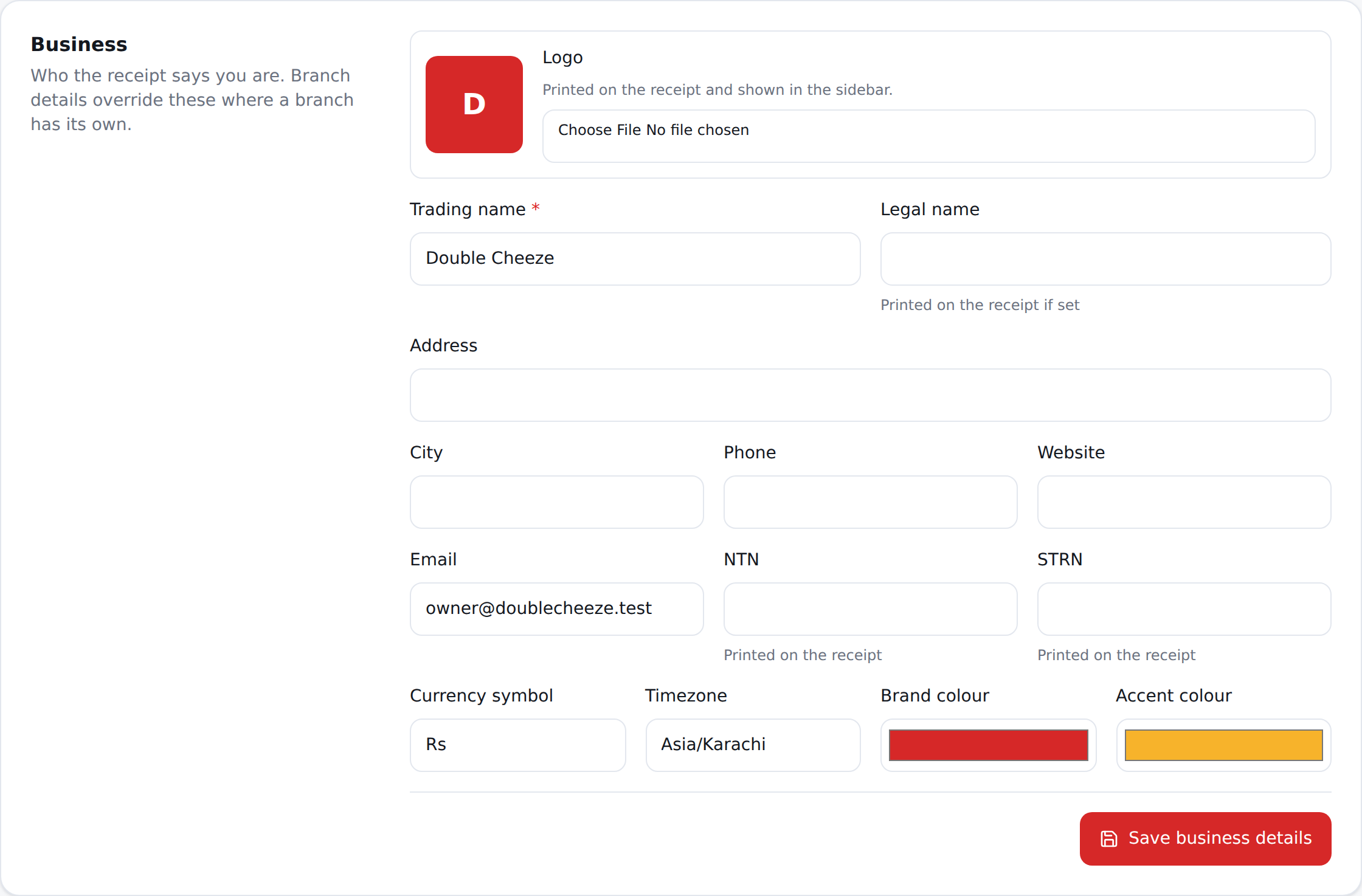
Business
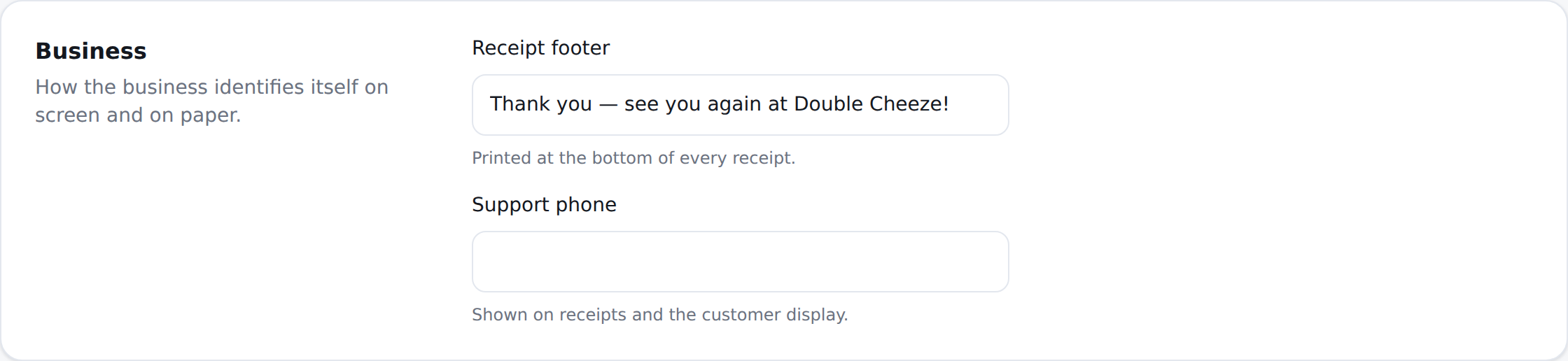
| Setting | What it does |
|---|---|
| Receipt footer | The thank-you line at the bottom of every receipt |
| Support phone | Printed under the footer |
The company's name, logo, address, NTN/STRN, website and currency are on the same page under the business profile — those are what the receipt and the A4 invoice print.
Two logos, not one
Upload two and they are used in two different places, because they are two different pictures:
| Where it shows | What it needs to be | |
|---|---|---|
| Logo | The sidebar, the login screen, the A4 invoice letterhead, report PDFs | Your ordinary artwork. Colour and gradients are fine |
| Receipt logo | The thermal receipt | Black or white, with nothing in between |
A thermal head prints black or white at 203 dots per inch and nothing between — so the logo with a gradient or pale lettering that looks right in a sidebar comes off the roll as a smudge, or as nothing at all. Give it a plain, bold, high-contrast version.
Upload only one and it is used for both. A shop that does not care gets a logo everywhere without a second thought; a shop whose paper looks wrong has somewhere to fix it.
Nothing about a logo can ever stop a receipt: a file the server cannot read, a format it cannot decode, or a server with no image extension all print the receipt without the picture rather than not printing it.
Approvals & Security
| Setting | Default | What it does |
|---|---|---|
| Discount needs a manager PIN | on | A cashier's own discount needs approval |
| FOC needs a manager PIN | on | Writing a whole order off |
| Void needs a manager PIN | on | Cancelling a completed sale |
| Refund needs a manager PIN | on | |
| Price override needs a manager PIN | on | |
| Day close reopen needs a manager PIN | on | |
| Cashier max discount % | 0 | How much a cashier may give with no approval. 0 means always ask |
| PIN length | 4 | 4–8 digits |
A campaign or a promo code never needs a PIN — those are your offers, not the cashier's decision. This setting is only about a discount the cashier types in.
Orders
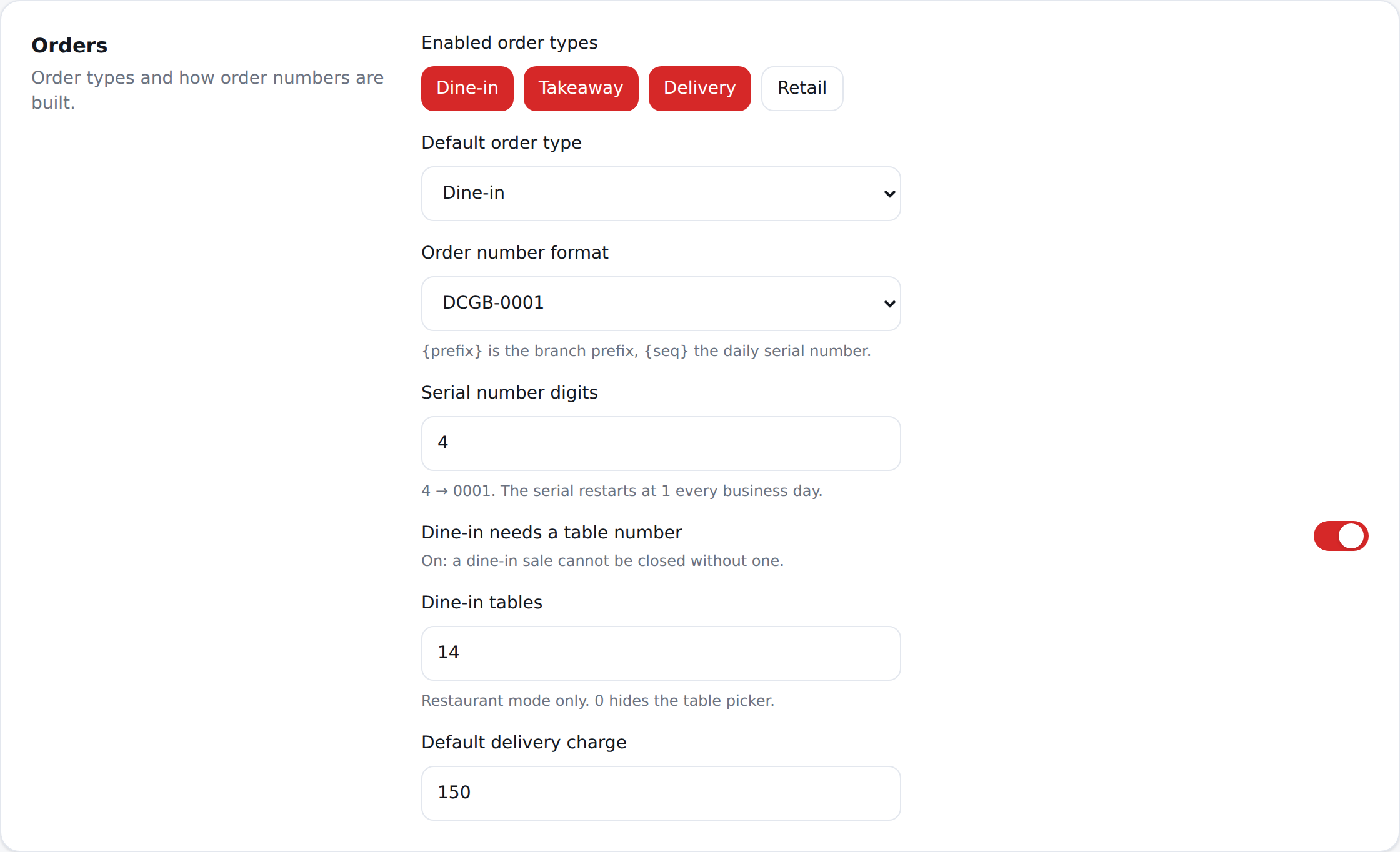
| Setting | Default | What it does |
|---|---|---|
| Enabled order types | all four | Which of dine-in / takeaway / delivery / retail this shop takes. A restaurant usually turns "retail" off, a shop turns the other three off |
| Default order type | takeaway | What the POS opens on |
| Order number format | {prefix}-{seq} | Or {prefix}-{YYMMDD}-{seq} to put the date in |
| Order number padding | 4 | 0001 |
| Require a table number | on | A dine-in order cannot be paid or held without one |
| Table count | 0 | How many tables the shop has |
| Delivery charge | 0 | Added to delivery orders only |
Order numbers restart every business day, per branch: DCGB-0001 again tomorrow
morning. A held order takes no number — the number is given when the sale is paid.
Tax & Fiscalisation
Fiscalisation is per branch: switch it on, pick the authority, and enter the credentials the
authority gave you. Any secret — the API token, the SRB password — is stored encrypted and is
never shown again: the field displays ******** once saved, and saving the mask back leaves
the real value alone. The tax rates themselves are on the Taxes page, not
here.
FBR and PRA want two things: the POS ID and the API token. SRB wants five: the POS ID, the registered POS name, the POS username and the POS password, plus the branch's NTN (which is on the branch, not here).
Ask the cashier on each sale puts a question on the pay screen: Send this invoice to FBR? with No and Yes, send. It starts at No on every sale, and only a Yes is sent. The tax is still charged either way, and still counted in the Tax report and the sales tax return; what changes is only whether the authority is told. The invoices kept back are listed apart on the Tax report, and the order says Not sent to authority on the Orders panel. It only matters where Push invoices to the tax authority is on.
Every answer is on the record, Yes as well as No: which cashier pressed it, at which till, and when — shown on the order in the Orders panel, and beside each kept-back invoice on the Tax report.
A kept-back invoice can still be sent. Open the sale in Orders on the web panel, or in Sales on the Sellify app, and press Send to the authority. The authority's invoice number lands on the order, and the attempt is logged with who sent it. If the authority does not answer, the log says so and Sellify keeps trying by itself.
Use the authority's sandbox points the branch at the test endpoint instead of the live one, so you can prove your credentials before a real invoice goes anywhere. Turn it off before you trade.
What happens next is on Taxes → Filing with the authority.
Receipt & Printing
Every line on the receipt is a switch: logo, company name, branch name, address, phone, website, NTN/STRN, order type and table, cashier, customer, item notes, tax breakdown, fiscal QR, an extra header line, an opening-hours line, and how many copies.
Paper size here is only the fallback for a branch with no printer set up. Once you add a printer on the Printers page, that printer's paper wins.
Inventory
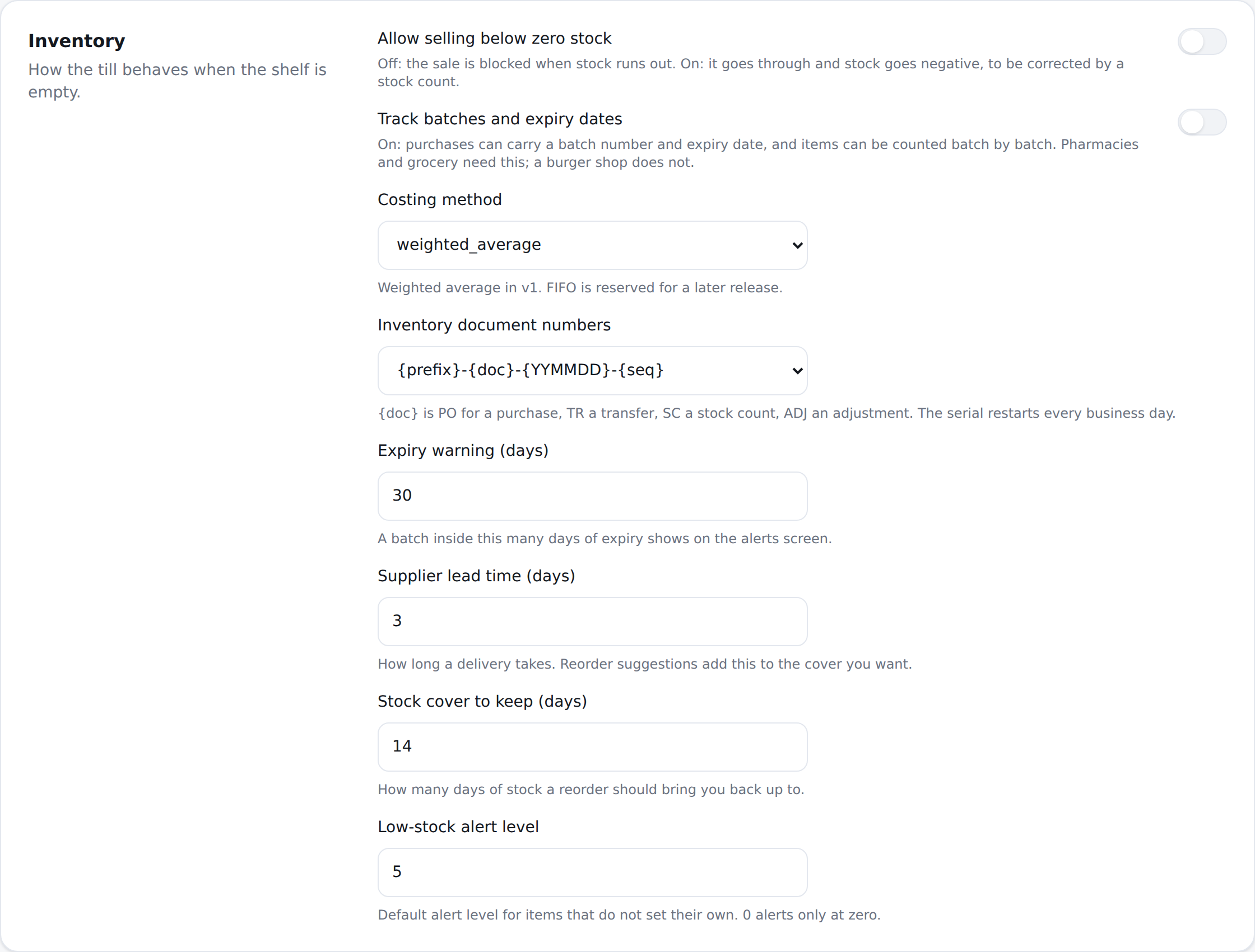
| Setting | Default | What it does |
|---|---|---|
| Allow negative stock | off | Off: a sale is blocked when stock runs out. On: the sale goes through and stock goes below zero, to be fixed by a stock count |
| Track batches and expiry | off | Turn on for a grocery; a burger shop does not need it |
| Costing method | weighted average | Fixed in v1 |
| Document number format | {prefix}-{doc}-{YYMMDD}-{seq} | Purchases, transfers, counts, adjustments |
| Expiry alert days | 30 | How early an expiry warning appears |
| Supplier lead time (days) | 3 | Used by reorder suggestions |
| Stock cover to keep (days) | 14 | Used by reorder suggestions |
| Low stock alert level | 0 | The default per item; an item can set its own |
Day close
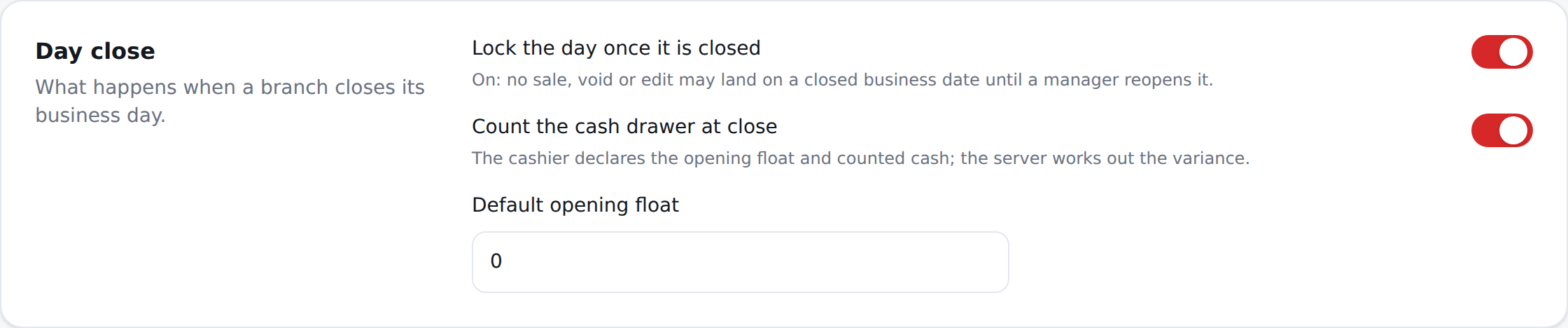
| Setting | Default | What it does |
|---|---|---|
| Lock the day | on | Once closed, no sale or void may land on that date until a manager reopens it |
| Require a cash count | on | The drawer must be counted before the day can close |
| Default opening float | 0 | What the till usually starts with |
Discounts

| Setting | Default | What it does |
|---|---|---|
| Allow a promo code and a campaign together | off | Off: the customer gets whichever is worth more. On: the campaign applies first and the code works on what is left |
| Maximum discount % | 50 | A hard cap. A manual discount past it is refused outright; a campaign or code past it is trimmed to the cap, because a mispriced offer must never stop the till |