
Selling more
The rider's phone
Menu: the Sellify app on the rider's phone · Sell → Dispatch (the map) · People → Employees Who: a rider signs in on the phone; the owner and the branch manager set them up and watch the map
A rider can carry Sellify on their phone. While they are on duty the phone tells the shop where they are, and the rider marks each bag out and delivered themselves, at the door. That answers three questions the dispatch board could not:
- "Rider kahan hai?" — the dispatch screen shows every rider on a map.
- "Mera order kahan hai?" — the call centre and your online store's tracking page show the rider on the way, and how far they are from the door.
- "Sach mein deliver hua tha?" — a delivery marked on the phone is marked at the door, with the place it happened. One marked at the counter says so.
Rider tracking is a module. If Rider tracking is not under Setup → Settings, ask us to switch it on for your company. Dispatch itself works without it — this only adds the phone.
Setting a rider up
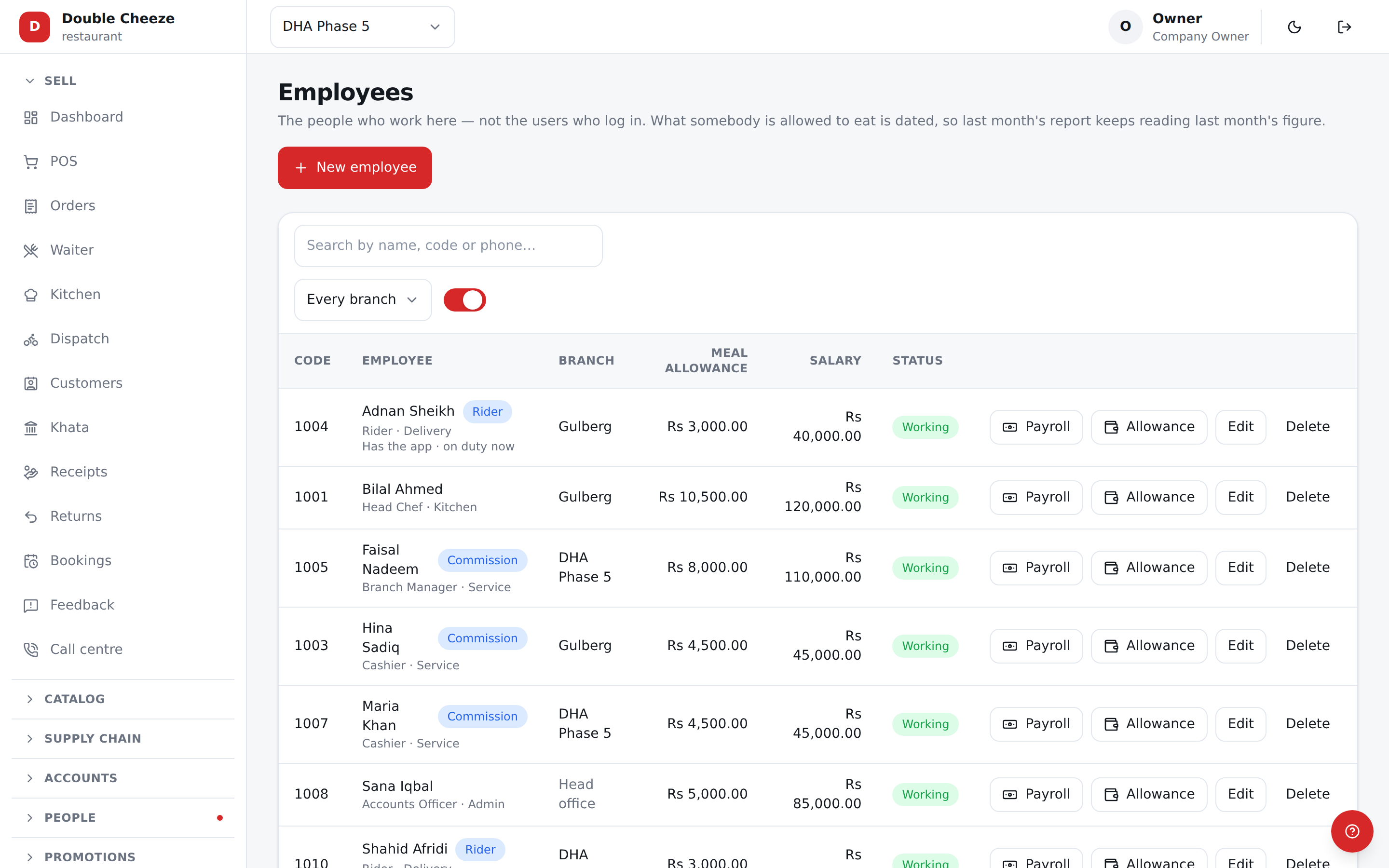
- People → Employees: the rider is an employee with Rider ticked, at the outlet they ride out of. (See Riders and delivery.)
- Setup → Users: add a user with the role Rider, at the same branch. A branch manager may add riders for their own outlet.
- Back on People → Employees, open the rider and pick that login under Signs in as. The rider list then says Has the app.
- On the rider's phone, install the Sellify app, choose This is a rider's phone, and sign in with that login.
A rider's phone is not a till: it is not paired, it does not count against your plan's tills, and it takes no money. It opens one screen — the rider's own deliveries — and nothing else. A rider login used in a browser is told the screen is on the phone.
Android only. The phone may be the rider's own; nothing is recorded outside their duty.
On duty
The rider presses Start duty when they start work and End duty when they finish.
- On duty, the phone sends its position — every 15 seconds while a bag is out, every minute while the rider waits at the shop. A notification stays on the phone the whole time, saying the shop can see them.
- Off duty, nothing is sent and nothing is kept. Ending duty, or signing out, stops it.
- No signal: the positions and the steps are kept on the phone and go up by themselves when the line comes back, each with the time it really happened.
Android has to be allowed to give Sellify the location. If it is not, the screen says Allow location in Settings.
The deliveries
The rider sees only their own orders: the ones the branch gave them, and today's finished ones. Each card has the order number, the customer's name and number (tap to call), the address, the time promised, the items, and what to collect — Collect in cash with the amount, or Collect nothing with the reason (Paid online, on the customer's account, already paid).
- Picked up — on my way when the bag leaves the shop.
- Delivered at the door.
- Could not deliver at the door, with a reason from your own list. The order is voided and the stock comes back, exactly as at the counter.
- Navigate opens Google Maps, or whichever map app the phone has, to the address — or to the pin, when the address has one.
The branch gives out the deliveries. A rider cannot take one by themselves unless the branch turns on Riders may take a waiting order themselves (Settings → Rider tracking); then Take this order appears on a waiting bag. A rider can never touch another rider's order — the server refuses it.
The rider's cash is still counted in at the shop on Dispatch → Riders' cash, as before.
Saving the spot
When a rider marks a delivery Delivered with a good GPS fix, the phone asks once: Save this spot? Say yes when the food was handed over at the customer's own door, and no when it was somewhere else — a neighbour, a gate down the street. A yes pins that customer's address, and the next rider to that address is sent to the pin.
A pin already there is never moved without asking: further off, the phone asks Move the pin here? instead.
An order keeps the pin it was sent to, so moving a pin next month never changes an order that has already gone. Your online store's checkout also offers the customer Use my location, which pins their address the same way.
Sellify never guesses a spot from the words of an address.
The map
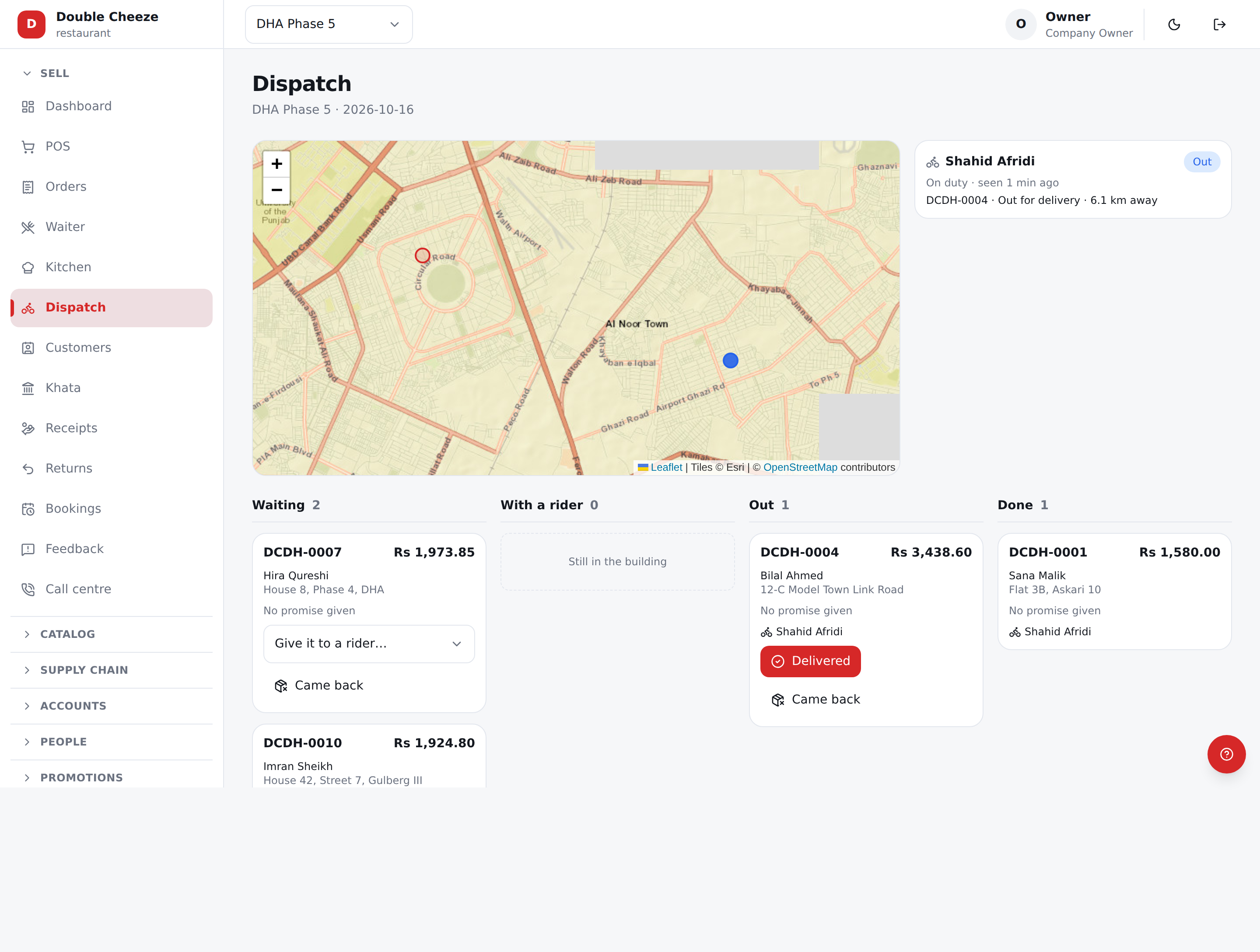
Sell → Dispatch shows a map above the board, with every rider of the branch:
| On the map | Means |
|---|---|
| A dot | Where the rider's phone last said they were |
| Free / With a bag / Late | Nothing out, a bag out, a bag past its promise |
| A faded dot | The phone has not spoken for over two minutes |
| No signal | Over ten minutes — no dot is drawn |
| Off duty | No dot at all, only when they were last seen |
| No rider app | A rider with no login is still listed, with no dot |
Beside the map, each rider's bags and how far, in a straight line, they are from the door. It refreshes itself every few seconds.
The call centre's board shows the same for an order that is out: where the rider is and how far from the customer. Read-only, as always.
Your online store's tracking page shows the customer a dot while their order is out — the rider's first name only, never their phone. Turn it off with Show the rider on the online store's tracking page (Settings → Rider tracking).
The map is drawn from OpenStreetMap through a map provider we set up on the server. If the screen lists the riders with no map, the provider is not set up yet — tell us.
Marked at the door, or at the counter
The counter can still mark a delivery done, because a phone that has died must not stop a shop. The reports then tell the two apart. A shop that wants the door to be the only truth turns on Only the rider's phone marks a delivery done (Settings → Rider tracking): an order carried by a rider who has the app can then only be marked delivered from that phone. A rider with no login is still marked at the counter.
The reports
Reporting → Reports, under Delivery:
- Rider activity — per rider per business day: time on duty, kilometres ridden, bags carried, delivered (at the door and at the counter), failed, and the average minutes from leaving the shop to the door.
- Rider route — one rider's day as a line on a map, with every position under it.
- Delivery performance and Rider performance gain At the door and At the counter.
Kilometres are straight lines between positions — a road that bends is longer. A position the phone was not sure of, or a jump no motorbike could make, is left out.
Both rider reports are about a person's movements, so they are never shown to the AI assistant.
How long it is kept
A rider's trail is kept 30 days (Settings → Rider tracking → Days a rider's movements are kept), then deleted every night. Where each delivery happened stays on the order for ever.
What it does not do
No road ETA and no route planning — the distance shown is a straight line. No photo or signature at the door, no chat with the customer, and no tracking on the Windows till.